Master Prompts
Master Prompts are a utility feature designed to ensure consistency, quality, and governance across all AI-generated experiments within a project. They act as a global instruction set that PBX automatically and transparently integrates into every prompt you send.
Why use Master Prompts?
- Effortless consistency: Establish a singular project-wide standard for brand voice, technical patterns, and data requirements.
- Improved output velocity: Reduce the need to repeat recurring instructions, allowing for faster experimental cycles.
- Project governance: Automate compliance with accessibility, tracking, and architectural standards without manual intervention.
How it works
The Master Prompt is a background instruction layer managed at the project level. When you interact with PBX to generate an experiment or variation:
- PBX automatically injects the Master Prompt into the request.
- PBX combines the Master Prompt with your specific prompt and processes the combined input, which ensures the final output adheres to both your specific request and the global project constraints.
Typical use cases
- Brand consistency: Enforce global rules for voice, tone, and visual styles (for example, standardizing CTA terminology and button behaviors).
- Architectural alignment:
- Framework support: Define global rules for interacting with specific frameworks (for example, React hooks or Vue components).
- DOM handling: Orchestrate complex DOM structures, including Web Components and Shadow DOM (for example, when to inject styles or how to handle slot positioning).
- Governance and compliance:
- Standard enforcement: Automatically require essential attributes for every generated element, such as accessibility tags (ARIA, alt text) or tracking parameters.
- Resilience: Set rules for handling dynamic rendering and re-rendering to ensure modifications persist.
- Data and layout integrity:
- Layout detection: Guide the AI to correctly identify real layout containers (for example, flex/grid nodes) rather than outer wrappers.
- Structured output: Mandate strict data formats or JSON schemas for any configuration-driven elements.
Configure a Master Prompt
To set up a Master Prompt for your project:
- Open the PBX editor.
- Click + > AI Settings.
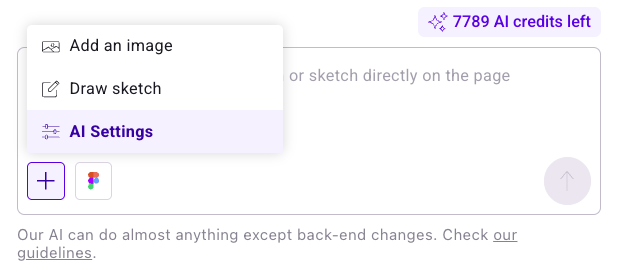
- Select your project from the Projects sidebar.
- On the Master Prompt tab, enter your Master Prompt into the text box.
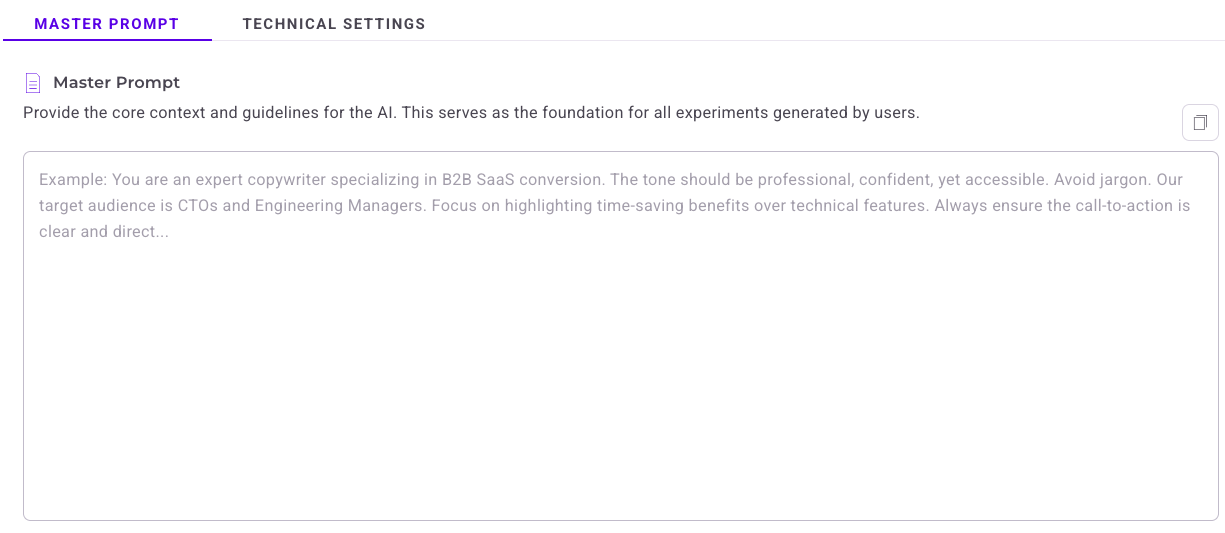
You can turn on Allow users to skip the master prompt. This option allows users to ignore the Master Prompt, meaning PBX does not apply your configured rules and constraints to their variations.
Roles and permissions
PBX divides capabilities to ensure proper project governance and guardrails.
Admin users
Admins manage the strategic direction of the AI's behavior within a project. Admins can:
- Access the AI Settings > Master Prompt interface for any project.
- Define the Master Prompt text and project-level toggle settings.
- Set whether individual users can "skip" the Master Prompt for specific sessions or prompts, or if PBX should strictly enforce it.
Non-admin users
Users interact with PBX normally and see a visible Master Prompt indicator when PBX applies global rules.
- Users can view the active Master Prompt content to understand the constraints.
- If an admin permits it, users can bypass the Master Prompt for a specific prompt or session. They can re-attach it at any point.
Best practices for admins
- Keep it modular: Focus on high-level constraints rather than micromanaging every detail. Let the user prompt handle specific session goals. If you notice users consistently overriding certain behaviors, consider formalizing those behaviors within the Master Prompt.
- Avoid overlapping rules: Ensure the Master Prompt doesn't contain conflicting instructions that might confuse the AI model.
- Clarity is key: Use concise, declarative language (for example, "Always use...") to ensure the highest adherence to your rules.