How to write effective prompts
Prompt-based experimentation (PBX) uses AI to help you build and test ideas quickly. You do not need coding skills to create high-performing variations—you only need to know how to communicate your vision to the AI.
Think of the AI as a skilled collaborator. If you provide clear instructions and context, the AI can deliver precise results. Use this guide to learn the principles of effective prompting.
What makes a good prompt?
To get the best results from the AI, focus on these three core principles.
Context
Provide context on the goal of your change. Explaining why you want to test a particular idea helps the AI tailor its output to meet your objectives.
- Good: "Change the color of the CTA to blue to improve visibility for the user." ✅
- Too vague: "Make this CTA nicer." ❌
Precision
Be specific about the change you want to make. Give an accurate visual description, including details like size, color, shape, position, and style.
- Good: "Add a white delivery truck icon next to the free shipping text to improve the click-through rate. The icon's height should match the text height." ✅
- No clear goal: "Change up the design." ❌
Simplicity
Use simple, actionable terminology. Focus on clear instructions and stick to one request per prompt. Do not overcomplicate the prompt with technical jargon.
- Good: "Replace the white background with a top-to-bottom gradient from
#2b5d50to#dae995." ✅ - Too many instructions: "Change the button color, add a promo image, and move the text." ❌
Follow a clear prompt structure
Users succeed with PBX when their prompts follow a clear structure. Use these four steps for more complex requests:
- Define the change
- State exactly what transformation you want to achieve.
- Specify visual and layout changes
- Detail the visual changes for the target element, layout guidelines, and design elements. You can also reference mockups or design files here.
- Explain the behavior
- Describe how the target element should respond to user actions.
- Set boundaries and limitations (optional)
- Define technical limitations, responsive requirements, and what should not happen.
Use an LLM to refine complex prompts before you use them in Kameleoon. You can even provide the above prompt structure as a template for the LLM to follow.
Examples in action
Review these examples to see how the prompt structure works in practice.
The "compare hotels" prompt
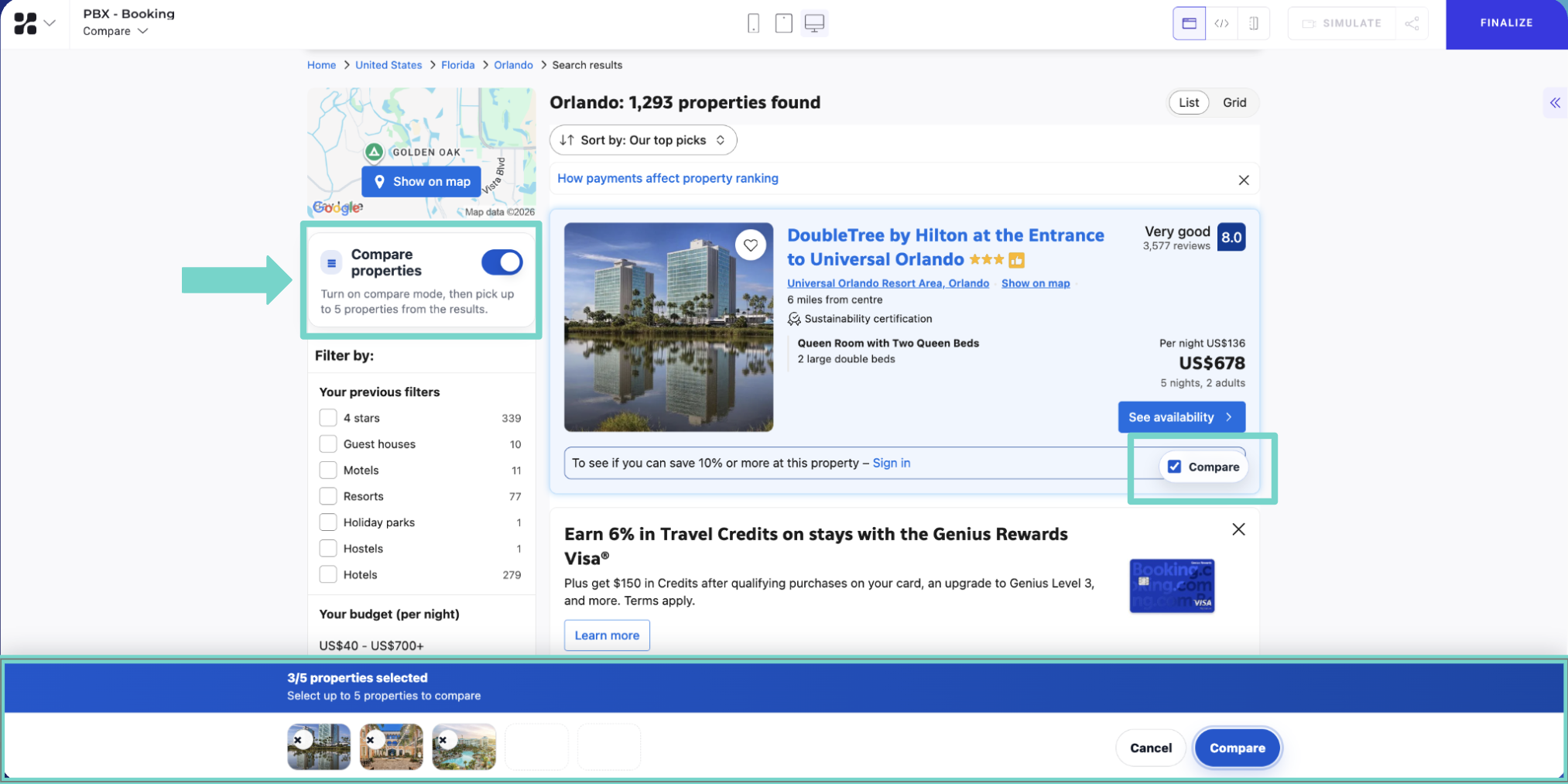
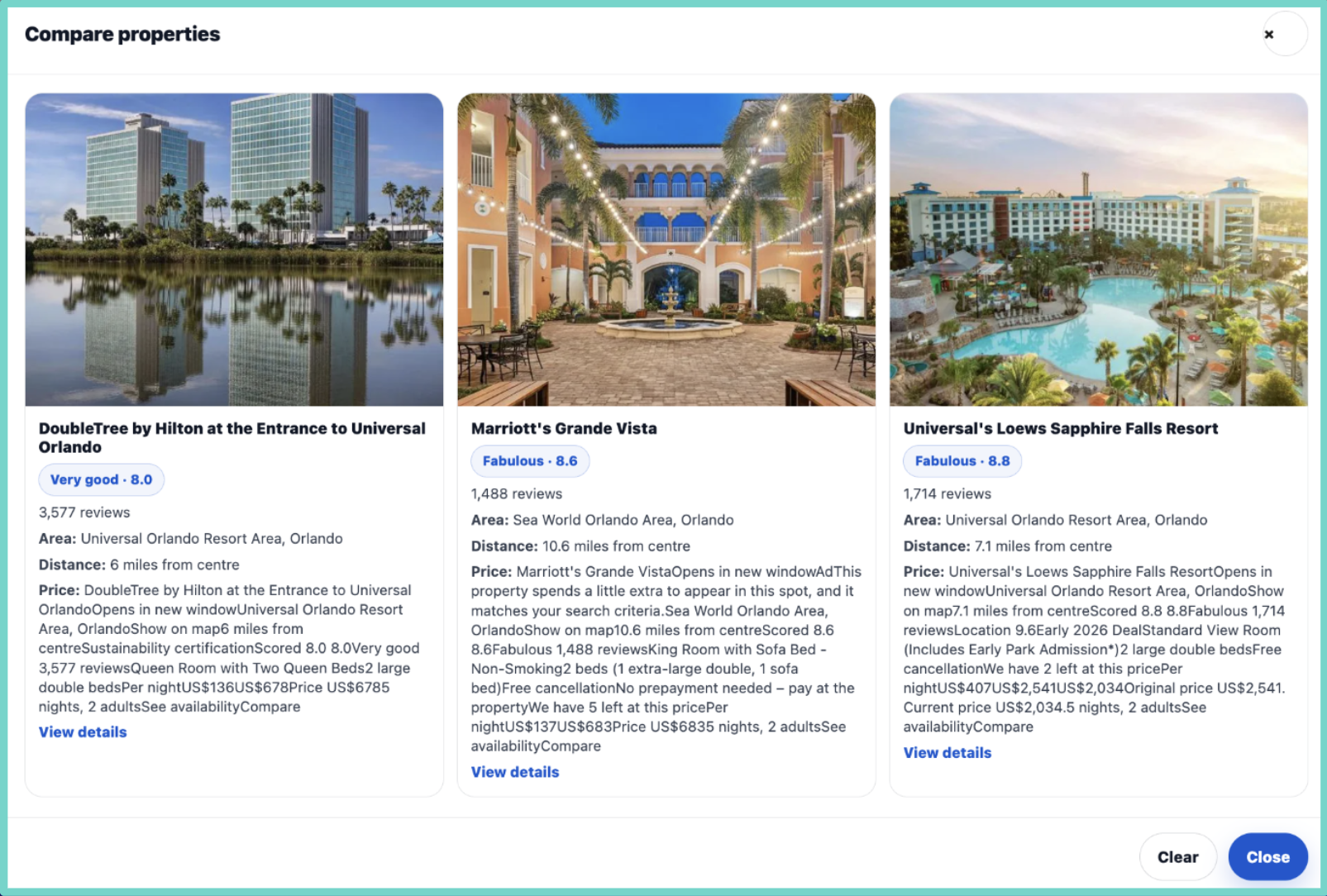
This example provides a clear structure for a complex feature:
"Build a 'Compare hotels' feature like the mockup. Add a 'Compare properties' toggle in the left sidebar to turn it on or off. When the toggle is on, show a 'Compare' checkbox on each property card in the bottom right. If at least one property is selected, show a sticky bottom tray with thumbnails, an 'X/5 selected' counter, and 'Cancel' and 'Compare' buttons. Clicking 'Compare' opens a simple modal showing the selected listing details. Limit selection to 5."
Will this prompt work?
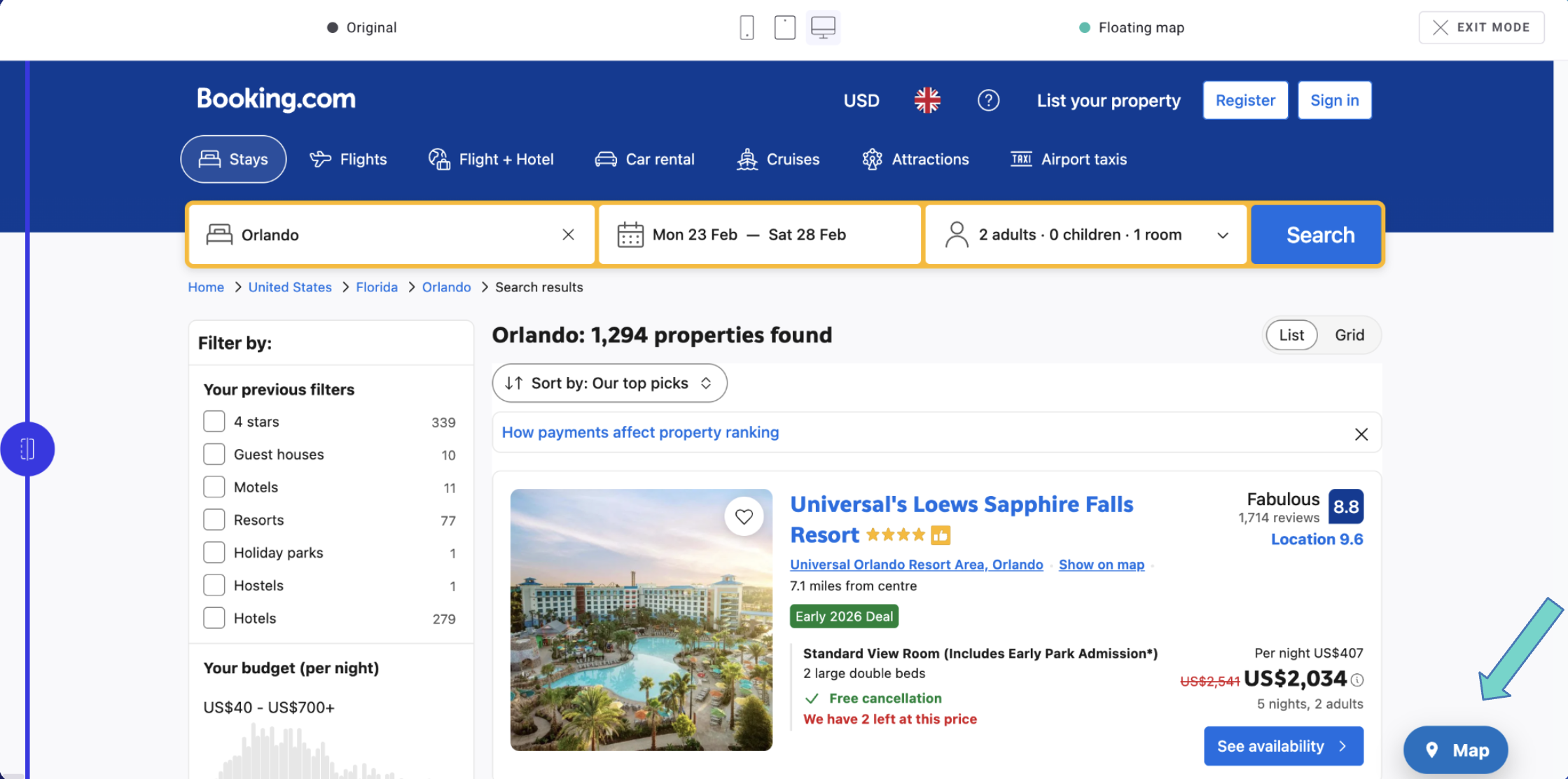
Prompt: "Replace the 'Show on map' block with a movable floating 'Map' button. Users should be able to drag it anywhere on the page. Clicking it should open the map view."
Verdict: ✅ Yes. It follows the recommended prompt structure and clearly describes the transformation.
Prompt: "Show a 15% discount for returning loyal customers."
Verdict: ❌ No. AI currently struggles to create new functionalities that involve dynamic data or backend logic.
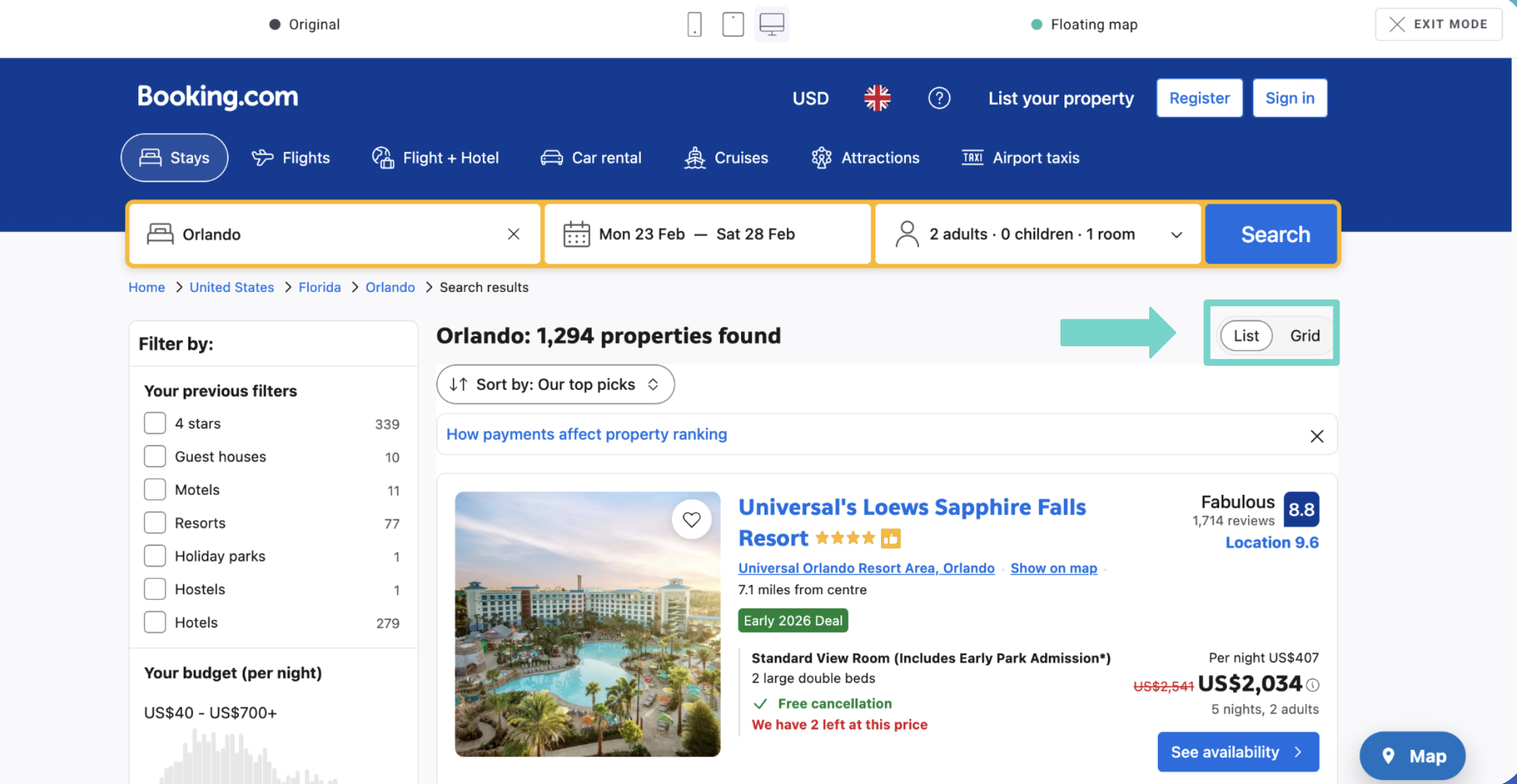
Prompt: "Make the grid view the default view."
Verdict: ✅ Yes. If the grid view already exists on the page, the AI can change the default state.
When in doubt...
If you are unsure how to phrase a prompt, keep these tips in mind:
- Think big, but stay realistic: AI cannot create new backend functionality. Focus on UI and UX changes.
- Keep it simple: Straightforward changes do not need complex prompts.
- Treat AI like a teammate: Write prompts as clearly as you would brief a developer.
You can also use the Draw a sketch feature to visually circle the area you want to update, the Import a file feature to provide a mockup for the AI to follow, or import designs directly from Figma.