Getting started with the Graphic editor
Watch the video tutorial for instructions on using the Graphic Editor.
After creating an account and installing the Kameleoon script, you can create and launch experiments. Use the Graphic Editor to modify experiments in a few clicks.
Here are some tips before you start:
- The Graphic editor doesn't work in incognito mode.
- When cross-sites cookies are blocked, the Graphic editor won't work.
- Mozilla blocks cookies by default. If you're using Mozilla, you must manually enable cookies.
**Enhance the use of the Graphic Editor with the Kameleoon Graphic Editor extension.
To troubleshoot issues with the Graphic Editor and view best practices, refer to the troubleshooting article.
User benefits
- Enhanced performance and compatibility.
- Intuitive user interface for better experience and ease-of-use.
- Ability to make batch edits across multiple pages.
- Advanced customization options.
- Seamless integration with Kameleoon's Widget Studio.
- AI-powered features for content generation, CSS selector handling, and design variations.
Open the Graphic editor
Kameleoon's editing mode provides the tools to create webpage variations and launch A/B experiments.
Via your website
To launch Kameleoon:
- Navigate to a webpage on which you have installed the Kameleoon script.
- Press shift + F2 on Windows, or fn + shift + F2 on Mac.
If nothing happens, add #kameleooon=true to the end of your code.
- Once Kameleoon loads, a pop-in opens. Fill in your username and password to access the editor.
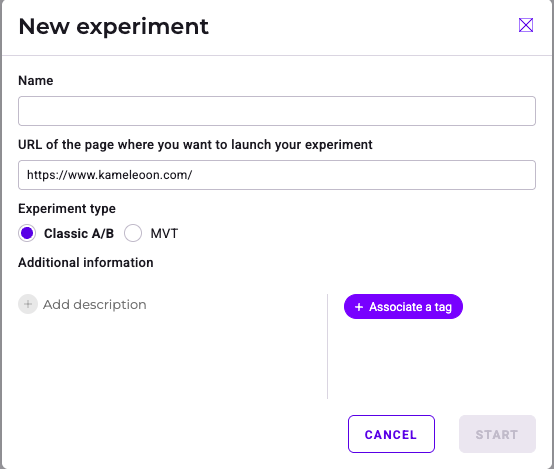
- A pop-in opens prompting you to select an experiment (if you've already created one) or create a new one. Click Create to create an experiment.
- Fill in your experiment's information, and select Classic A/B under Experiment type.
- Click Start.
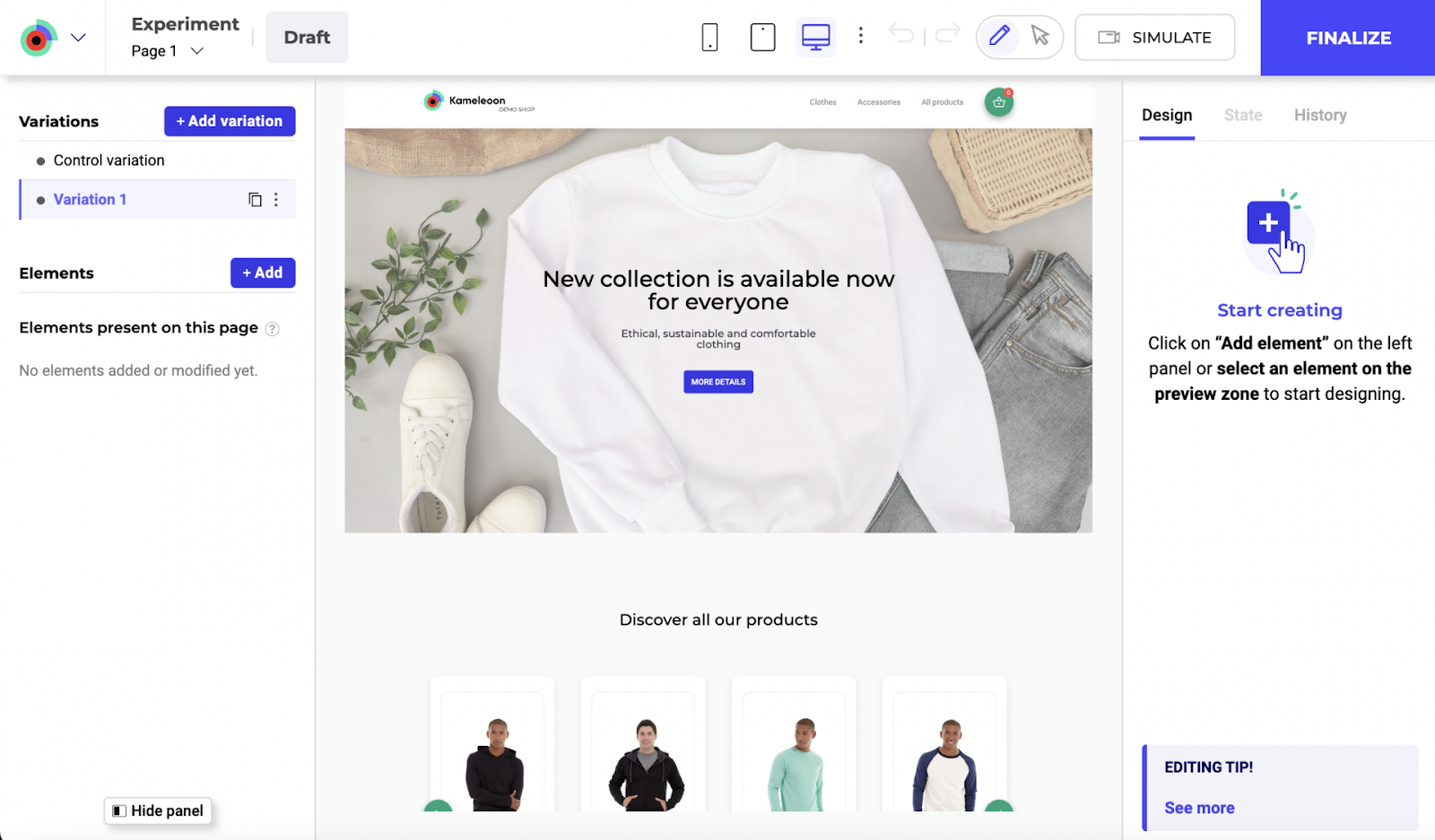
The Graphic editor opens on your web page.
Via the Kameleoon app
You can also launch the editor from the Kameleoon app.
- Log in to your Kameleoon app.
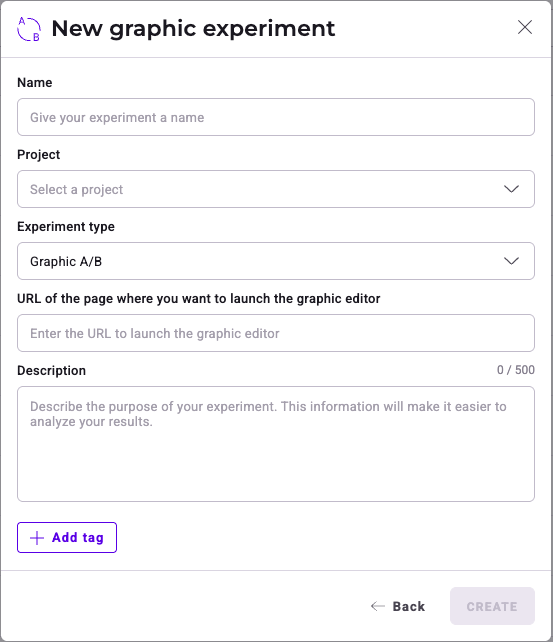
- Click New experiment > With the graphic editor.
- Fill in your experiment's information, and select Graphic A/B under Experiment type.
- Click Create.
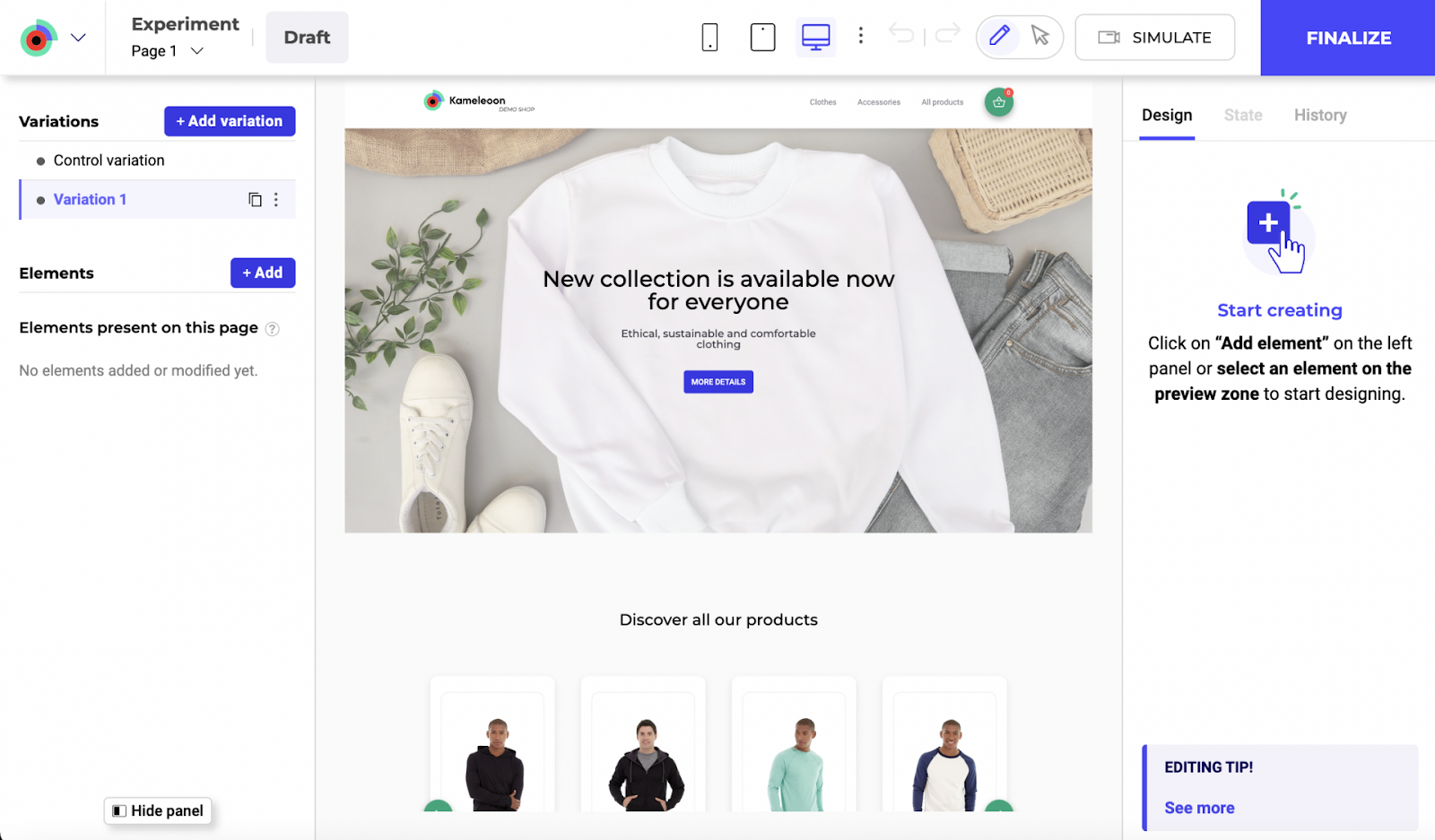
The Graphic editor opens on your web page.
Structure
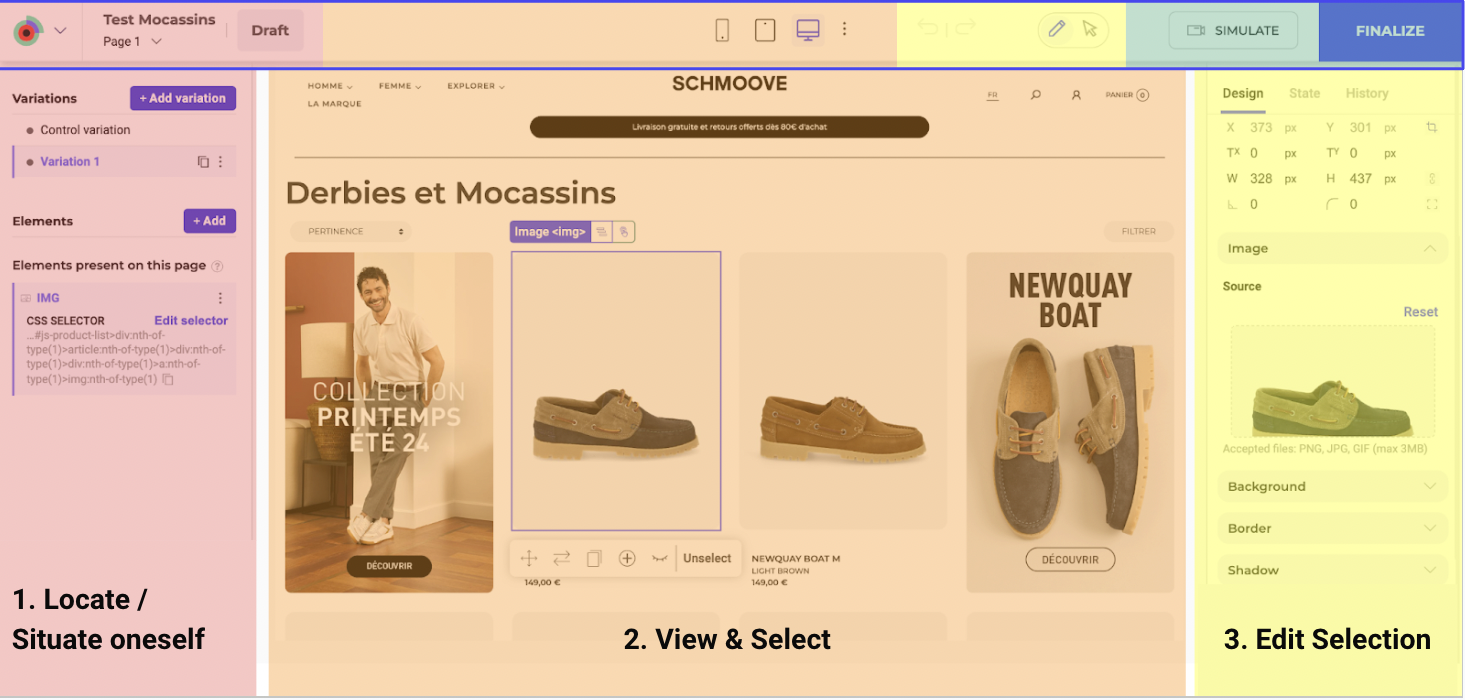
Experiment panel (left side)
Function: Manages the current experiment, including variations and elements on the page.
Features:
- Add variations and elements.
- Edit CSS selectors.
- View and manage elements present on different pages.
Main editing area (center)
Function: Allows direct interaction with webpage elements for editing.
Features:
- Select and modify text, images, and other content.
- Access editing shortcuts.
Right panel (right side)
Tabs: Design, State, History
Features:
- Customize content, text, background, border, shadow, padding, margin, and more.
- Manage element states (for example, default, hovered, active, focus, disabled).
- Manage change history for each element.
Top toolbar
Function: Offers tools for viewing and finalizing changes.
Features:
- Device mode switching.
- Simulate changes.
- Finalize the experiment.
Customize the Graphic editor display
- Zoom: Adjust the zoom level to fit your screen and preferences.
- Reduce Left Panel: Minimize the left panel to increase workspace.
- Hide Left Panel: Completely hide the left panel for a distraction-free view.
- Full screen Mode: Expand the editor full screen for an immersive editing experience.
Simulation and Finalization
- Simulation: Click SIMULATE to preview how changes will look and function on your website.
- Finalization: Click FINALIZE to access the Finalization steps.
Device switching
Use the top toolbar to switch between different device views (desktop, tablet, mobile) to ensure the design is responsive and displays correctly on all devices.
Kameleoon Graphic editor extension
Enhance the use of the Graphic Editor with the Kameleoon Graphic Editor extension.
When to use the Graphic editor extension
- Some websites restrict the usage of an iframe. To address iframe restrictions, use the Graphic Editor extension to override these limitations and launch the Graphic Editor.
- Certain websites present a mobile version when detecting a mobile user agent. To ensure the Graphic Editor displays the mobile version correctly, the browser must identify as a mobile device. The extension facilitates the mobile identification process.
How to install the Graphic Editor extension
Visit the Chrome Store to download the Kameleoon Graphic Editor extension.