Generate test ideas
PBX Ideate transforms identified friction points into specific, actionable optimization hypotheses and test ideas.
Generate hypotheses
Kameleoon generates a hypothesis—a theory of change that explains how fixing the root cause improves user outcomes.
Experiments and variations
Kameleoon generates up to eight test ideas for each page you analyze, categorized by hypothesis. You can implement these ideas directly in the PBX interface.
To prioritize your roadmap, review the Impact Score assigned to every idea. Confidence AI powers the Impact Score, which represents the likelihood of the test producing a meaningful conversion lift. Focus on high-impact opportunities first.
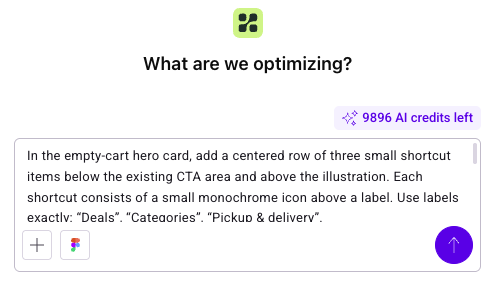
Each experiment suggests concrete variations for text, layout, or styling, allowing you to start testing immediately without designing from scratch.
Scanned pages
Add specific URLs to the Scanned pages tab to generate test ideas.
- Navigate to Insights > Test Ideas.
- Click Add pages. The Add pages to scan pop-up opens.
- Select the project for the page.
- Enter the page URL.
- Click the + icon > Add pages.
Hypothesis generation is not instant. Analysis takes approximately 10–15 minutes after you scan a page.
View and manage test ideas
You can access AI-generated test ideas directly within Kameleoon.
Select pages for analysis
- Sign in to Kameleoon and navigate to Insights > Test Ideas.
- From the dropdown menu, select the website to analyze.
- Add the specific URLs to analyze.
The AI analysis process is thorough and may take up to 15 minutes to complete.
Analysis quotas and strategy
The number of pages you can analyze depends on your plan. For the Basic (Free) tier, you can perform 12 successful analyses per year across your entire workspace. For more information on quotas and upgrades, see PBX Ideate freemium.
Because of these limits, select page categories rather than multiple similar pages to maximize your analysis value.
- Recommendation: Analyze one representative URL for a category (for example, one product detail page) rather than 10 different product pages.
- Logic: Usability friction identified on one product page likely exists on all similar pages.
- Targeting: Although you analyze a single URL, apply the resulting experiment to all pages in that category (for example, targeting all product pages) using standard targeting conditions in PBX.
Review suggestions
Expand a page to view the generated hypotheses and specific, actionable test ideas.

Each idea card displays:
- Test name: A concise title for the experiment.
- Impact Score: A predictive score (0-10) estimating the likelihood of this test producing a conversion lift. Confidence AI derives this score by analyzing thousands of historical test results to identify success patterns:
- 8-10 (High confidence): Strong evidence, proven patterns, and clear mechanisms.
- 5-7 (Moderate confidence): Reasonable hypothesis with partially supported patterns.
- 1-4 (Low confidence): Speculative mechanism or unsupported patterns.
Analyze details
To understand the logic behind a suggestion:
- Click the three dots menu next to a specific test idea.
- Select See details.
OR
- Click See diagnosis.
A pop-up panel displays details about the test. Kameleoon highlights the targeted element at the top of the panel.
Hypothesis
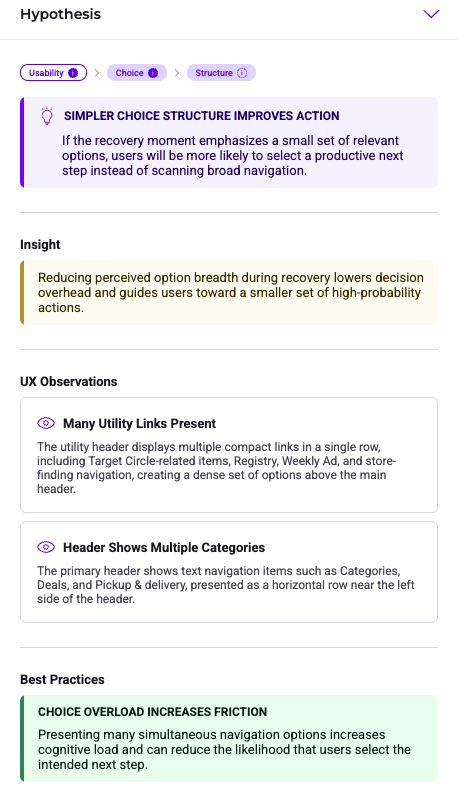
Under the Hypothesis dropdown, view:
- Levers: The Conversion Master Lever, Lever, and Sub-Lever that form the hypothesis' basis.
- Insight: A logical synthesis of why the change should work.
- UX Observations: Specific elements on your page that triggered the recommendation.
- Best Practices: Behavioral principles derived from academic research and successful test outcomes. These ensure recommendations ground themselves in real-world performance data.
Best practices include:
- Attention Follows Visual Weight: A universal perceptual law validated across hundreds of tests.
- Explicitly Framing Reduces Interpretation Effort: A mechanism-aligned pattern from clarity testing.
- Primary CTAs Require Dominant Contrast: A design heuristic with consistent positive results.
Test Idea
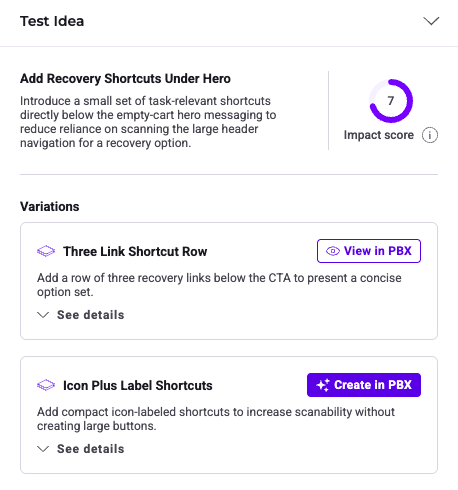
The Test Idea dropdown shows the specific variations proposed for that test idea. These variations represent concrete ways to implement the test idea (for example, changing the checkout flow to a single-page layout).
Share test ideas
Share your projects via a Guest Mode link. Recipients can view the analysis even if they do not have a Kameleoon account.
- Select the project you want to share.
- Click Share in the top-right corner.
- Click Copy Link to save the URL to your clipboard.
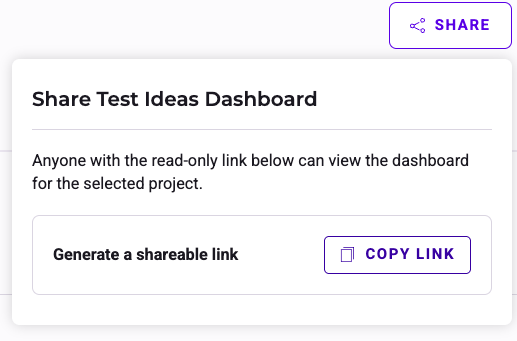
Each link is project-specific. Guests only have access to the selected project. To share a different project, switch projects in the dropdown menu and generate a new link.
Launch an experiment
Implement promising ideas directly from the interface.
- In the sidebar, select the variation to test.
- Click Create in PBX.
If you have already created a variation, the CTA changes to View in PBX.
How experiments are created
- First variation: The first time you click Create in PBX for a test idea, Kameleoon creates a new experiment containing the selected variation.
- Additional variations: To test multiple variations against each other, select a second variation from the list and click Create in PBX again. Kameleoon automatically adds the new variation to the existing experiment.
The PBX interface opens with the targeted element and suggested prompt ready for review. You can then finalize the design and launch the experiment.