Tracking counters in the Widget Studio
This tutorial explains how to use tracking counters (Visits counter, Transaction counter or Products in Cart counter) directly in the Widget Studio. These counters help increase user trust and engagement by displaying real-time activity data inside your widget text.
Be sure to implement the relevant tracking in your code before using them in your widget.
Available counters
The Widget Studio provides three built-in counters that you can use as custom variables in any text element:
- Visits counter – shows the number of visits
- Transaction counter – shows the number of transactions
- Products in Cart counter – shows how many products are currently in carts
The values of these counters are populated dynamically and update automatically.
How to add a counter to your Widget
Follow these steps to insert a social proof counter into your text:
- Open your widget in the Widget Studio.
- Select the text element you want to edit.
- In the text editor, click the three dots menu (three vertical dots) and select Custom variables.
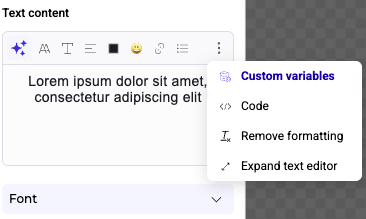
- Use the filter and type
api.
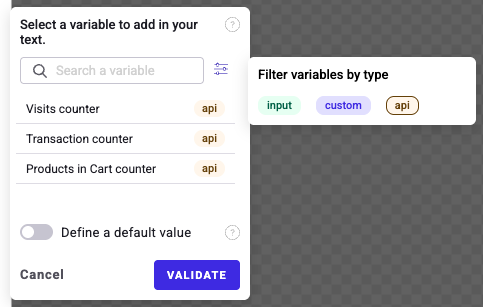
- Choose the counter you want to insert (Visits counter, Transaction counter or Products in Cart counter):
The selected counter will be added directly into your text.
Counter Configuration Options
Each counter can be customized using the following settings:
1. Start Counting From
Define the initial value from which the counter starts counting.
2. Number Format
Choose how the number is displayed (for example, full number or abbreviated format).
3. Display Threshold
Set a minimum value for the counter to be displayed:
- Display if more than X views
- Display if more than X transactions
- Display if more than X products in cart
This allows you to hide the counter until it reaches a meaningful number.