Manage your feature flags
To learn how to create a new feature flag, read Kameleoon's article on the subject.
Access the Feature flags Dashboard
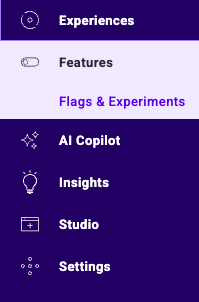
To access the Feature flags dashboard, click Features > Flags & Experiments.
Feature flag information
A card represents each feature flag and displays its main information. To view more details without editing the flag, hover over the tooltip to the right of the flag's name.
Find a feature flag
Use the search bar, filtering tool, and sorting tool to locate specific flags.
Filter
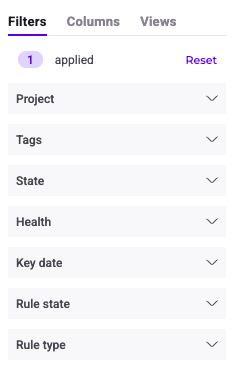
Filter feature flags by the following criteria:
- Project
- Tags
- State
- Health
- Key date
- Rule state
- Rule type
Select one or more filters and click Apply.
Save these filters as a view for later retrieval.
Kameleoon generates a unique URL with custom parameters when you apply filters. To share this URL with team members, click Copy link to this filtered dashboard on the right side of the dashboard.
Sort
Sort experiments by the following criteria:
- Rule status
- Type
- Modification date
- Creation date
- Tags
Click the arrow to display all columns.
Hover over a column and click the chevron to sort feature flags by that specific criterion.
Views
The Production environment view is applied by default.
Create a custom view to save specific filter settings. To access a view, click Views and then select the view's name.
To load a specific view automatically when the dashboard opens, set it as the default view by clicking the three-dots menu > Default.
Kameleoon generates a unique URL with custom parameters when you create a view. To share this URL with team members, click the three-dots menu > Copy URL
Edit a feature flag
To edit a feature flag, click Edit. Kameleoon redirects you to the Variables & Code page.
Actions on a feature flag
Click the More options (three-dots) menu on a feature flag's card to access available actions. The options depend on the feature flag's state (ON, OFF, or planned).
Turn on
Turn ON an existing feature flag in its environment. Its state changes from OFF to ON. Read more
Turn off
Turn OFF an existing feature flag in its environment. Its state changes from ON to OFF, and the feature is no longer visible to users in this environment. Read more
Define a rollout strategy
Edit the rollout strategy linked to a feature flag. Kameleoon redirects you to the feature flag's Rollout page. Read more
Rename
Rename an existing feature flag.
The Rename sidebar opens. To confirm the new name, click Save.
Manage tags
Manage the tags associated with a feature flag.
The Manage tags sidebar opens. The list and the flag card highlight any tags currently associated with the flag.
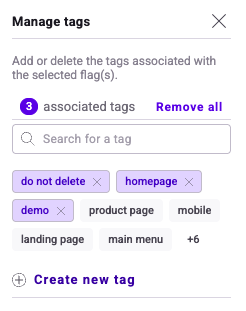
Associate existing tags or create new ones. Click Save to confirm your choices.
Duplicate
Duplicate an existing feature flag to quickly create similar flags.
The Duplicate sidebar opens. To confirm the creation of the new feature flag, click Save.
Duplication clones the rule configurations (for all environments), flag setup, and the original flag's tags.
Results
Access a feature flag's results. Kameleoon redirects you to the results page. Read more
Delete
Delete an existing feature flag.
You must set the flag to OFF in all environments before you can delete it.
To validate the deletion, confirm your choice in the pop-up.
Perform grouped actions
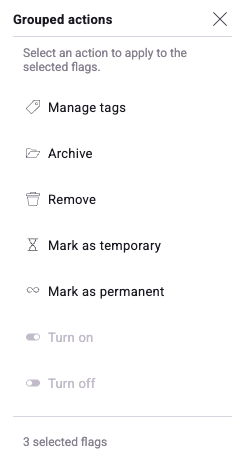
Apply actions to multiple feature flags simultaneously using the Grouped actions sidebar.
- Click the More options (three-dots) menu on any feature flag card.
- Click Select. The Grouped actions sidebar opens.
- Select the checkboxes next to the feature flags you want to modify.
- In the sidebar, click the action you want to perform:
- Manage tags
- Archive
- Remove
- Mark as temporary
- Mark as permanent
- Turn on
- Turn off
- Confirm the action in the pop-up window.