Manage themes
Themes allow you to enforce brand guidelines across your projects. By defining specific colors, fonts, and reusable components, you ensure that all widgets created in the Widget Studio remain consistent with your brand identity.
This article explains how to access, organize, and configure usage settings for your themes.
Access the Themes dashboard
To access the Themes dashboard, click Studio > Themes in the left sidebar.
From the dashboard, you can organize your view:

- Search: Use the search bar to find a specific theme by name.
- Sort: Click the Sort icon to order themes by Modification date (newest to oldest or oldest to newest) or alphabetically (A to Z, Z to A).
- View: Switch between Block view (grid) and List view using the icons next to the sort options.
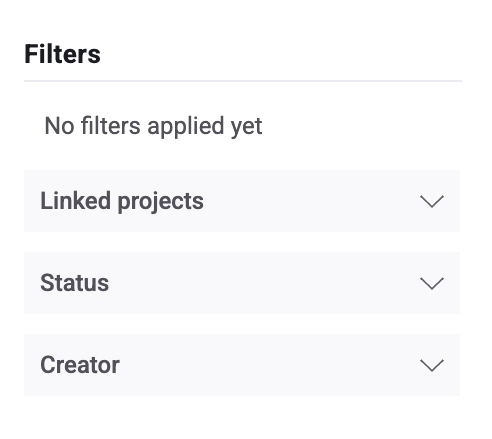
- Filter: Open the Filters sidebar to refine the list by Project or Status (Active/Inactive). Click Apply to update the list.
Configure theme usage and defaults
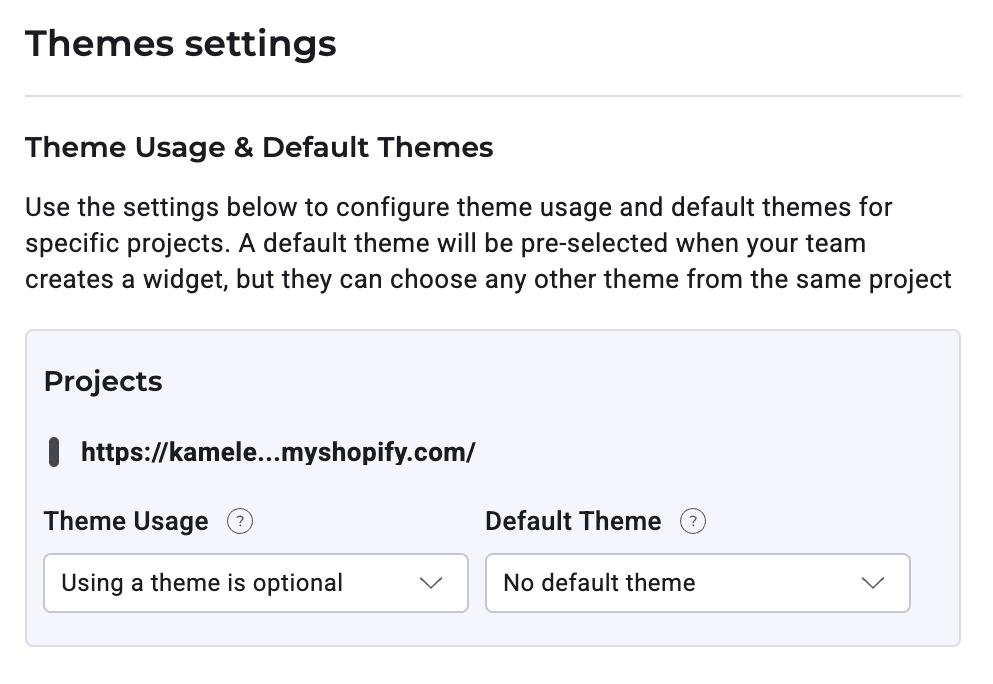
Administrators can control how strict theme usage is for each project. You can require users to apply a theme or allow them to create widgets without one.
- On the Themes dashboard, click the settings (cog wheel) icon.
- In the Theme Usage & Default Themes panel, locate the project you want to configure.
- Select the usage mode:
- Optional: Users can choose whether to apply a theme when creating widgets.
- Mandatory: Users must select a theme to create a widget.
- (Optional) Select a Default Theme. This theme will be pre-selected for users creating new widgets in this project.
- Click Save.
Edit and manage existing themes
Each theme card provides quick access to management actions:
- Edit: Click the Pencil icon to open the Theme Builder and modify colors, fonts, or components.
- Secondary actions: Click the secondary actions (three dots) menu to:
- Preview theme: View how the theme appears.
- Rename theme: Change the internal display name.
- Manage tags: Add or remove tags for organization.
- Duplicate theme: Create a copy of the theme.
- Activate/Deactivate: Toggle the theme's availability.
- Delete: Permanently remove the theme.