Create a segment
For a video tutorial on targeting segments visit the Kameleoon Academy
Segments help you target your visitors. You can create, modify and duplicate segments with Kameleoon's Segment Builder.
Access the Segment Builder
From the App
To access the Segment Builder in the Kameleoon app, click Settings > Segments.
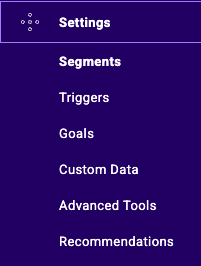
Click New segment to create a new segment. The segment creation pop-in opens.
From the A/B finalization flow
You can create a new segment directly from the A/B test finalization flow. This opens the segment creation pop-in.
Create a new segment
Types of segmentation
There are two types of segmentation:
- A posteriori segmentation occurs after the test. A posteriori segmentation only shows if a variation's performance has increased in a given segment. Kameleoon does not manage this type of segmentation. Your web analytics solution (for example, Google Analytics, KISSmetrics, or AT Internet) usually handles it.
- A priori segmentation targets a specific fragment of your traffic because the test only applies to this segment. For instance, if you have a website with international users, you might want to run an experiment for only users in France. Similarly, you could test an offer that only displays to a specific segment (for example, first-time visitors). Kameleoon manages this type of segmentation.
Enter your segment's information
Fill in:
- Your segment's name
- The site for which you are creating this segment.
- The type of campaign for which you are creating this segment:
- Web experiment/Personalization
- Feature flag/SDK experiment
- All experiment types
The available conditions in the next step depend on the campaign type you choose.
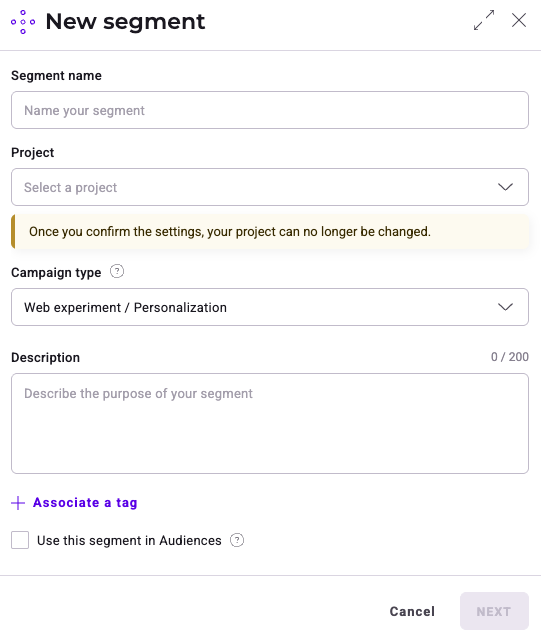
You can also add a description, tags, or choose to use the segment in Audiences.
You can update your segment information in the final step of the creation process within the recap panel.
Select and set a condition
To add a condition, drag and drop a condition from the left-hand list to the field on the right.
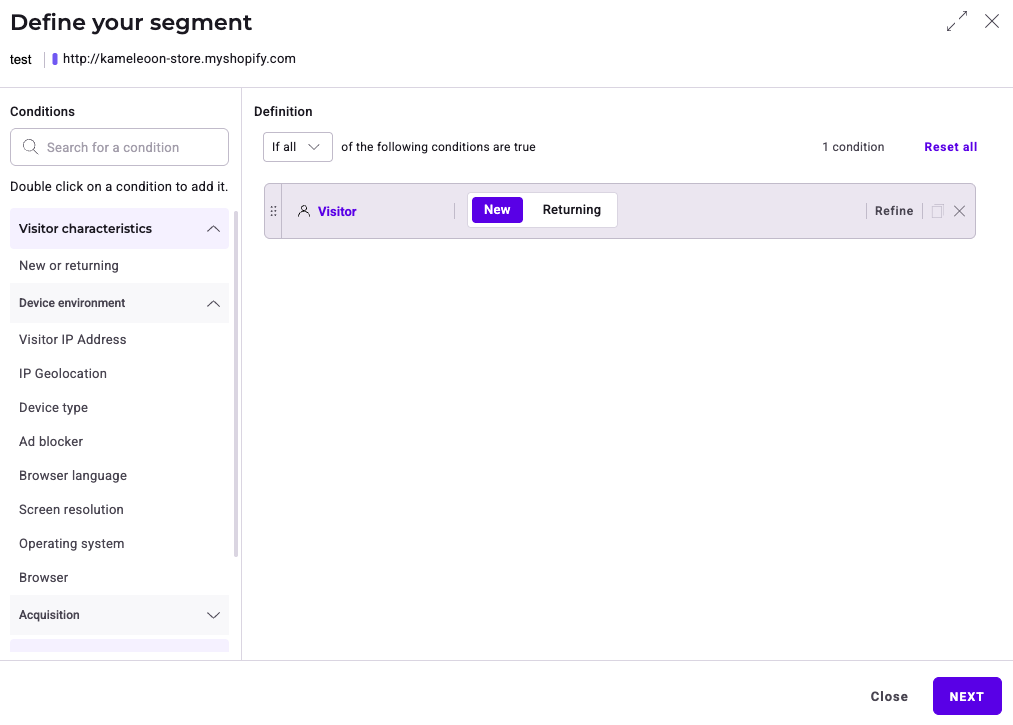
The pop-in shows the condition's settings after you drag and drop it.
Configure the condition as you wish.
Delete a condition
Click the X icon to delete a condition.
Narrow or add a new condition
To add a new condition when you've already selected a condition, two options are available:
- Narrow an existing condition: Further specifies a condition, similar to using mathematical parentheses: (Condition A and Condition B) and Condition C.
- Add a new condition: Adds a condition at the same level: Condition A and Condition B and Condition C.
For more information, refer to the FAQ.
Quickly add conditions
You can quickly add multiple conditions of the same type by clicking the small + icon on the right side of the condition. This feature is available for conditions frequently used in large numbers.

When you add multiple identical conditions, Kameleoon links them with an OR operator. The dropdown menu updates to is including any of or is not including any of.

Once you add multiple identical conditions, you can delete them individually.
Use logical links between conditions
Creating effective targeting segments in Kameleoon involves combining various conditions to define your audience. The use of the logical operators AND/OR is crucial in this process. Additionally, understanding the distinction between “include” and “exclude” conditions is essential for accurate segment configuration.
Logical operators: AND vs. OR
AND Operator: Use the AND operator (select If all from the dropdown) when you want the visitor to meet all specified conditions to include them in your segment. This operator narrows your target audience to those who meet all of your defined criteria.
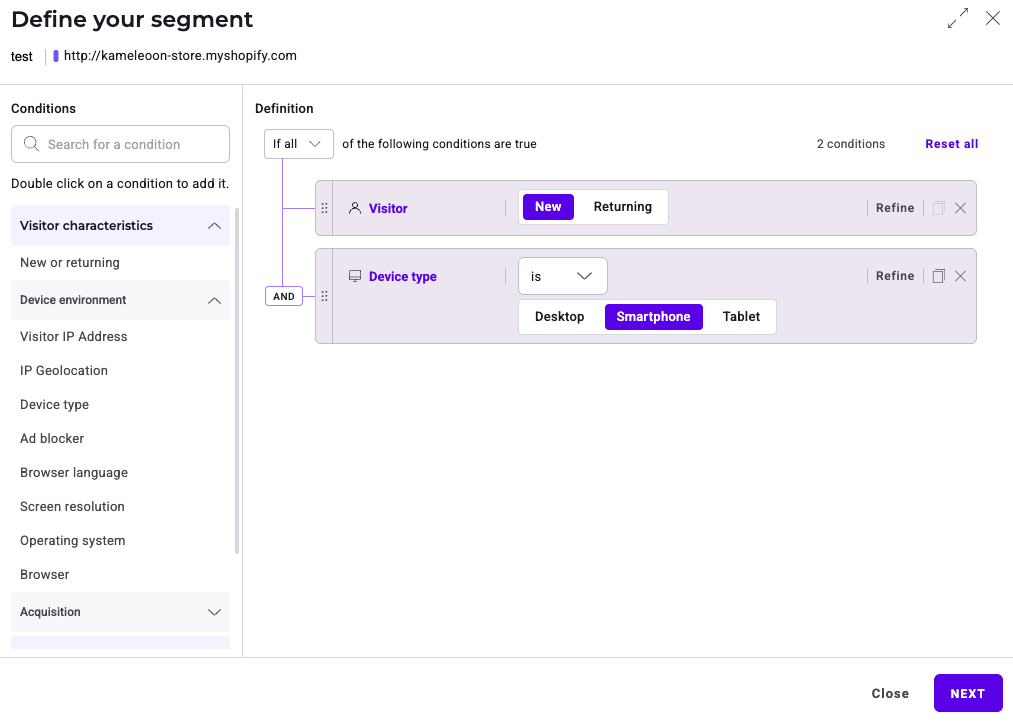
- Example: If you set an AND condition for "New Visitors" AND "On Mobile", Kameleoon only includes visitors who are both new to your site and accessing it via a mobile device.
OR Operator: Use the OR operator (select If any from the dropdown) when you want the visitor to meet any one of the specified conditions to include them in your segment. This operator broadens your target audience.
- Example: If you set an OR condition for "New Visitors" OR "On Mobile", Kameleoon includes visitors who are either new to your site or accessing it via a mobile device.
AND is prioritized over OR.
Is versus Is not conditions
Is condition: Specifying an Is condition means that you want visitors who meet this condition to be part of your target segment.
- True: Visitor possesses the characteristic (for example, desktop device type is true).
- False: Visitor does not possess the characteristic (for example, desktop device type is false).
Exclude Condition: Specifying an Is not condition means that visitors who meet this condition will not be part of your target segment.
- True: Visitor does not possess the characteristic (for example, desktop device type is false, meaning the device type is not desktop, so they are included).
- False: Visitor possesses the characteristic (for example, desktop device type is true, meaning the device type is desktop, so they are excluded).
Practical examples and common pitfalls
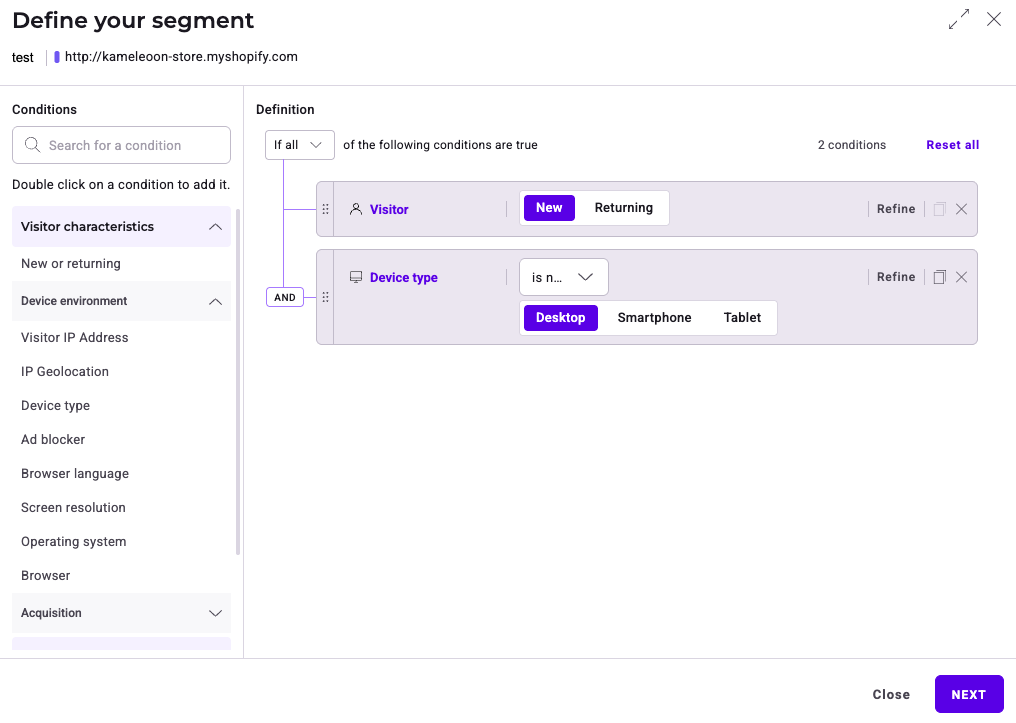
- Including New Visitors on Smartphone:
- Condition 1: New Visitor (Is)
- Condition 2: On Smartphone (Is)
- Logical link: AND
- Outcome: Only new visitors accessing the site on mobile devices will be included.
- Excluding Returning Visitors on Desktop:
- Condition 1: New Visitors (Is)
- Condition 2: On Desktop (Is not)
- Logical link: AND
- Outcome: Visitors who are returning and accessing the site via desktop will be excluded.
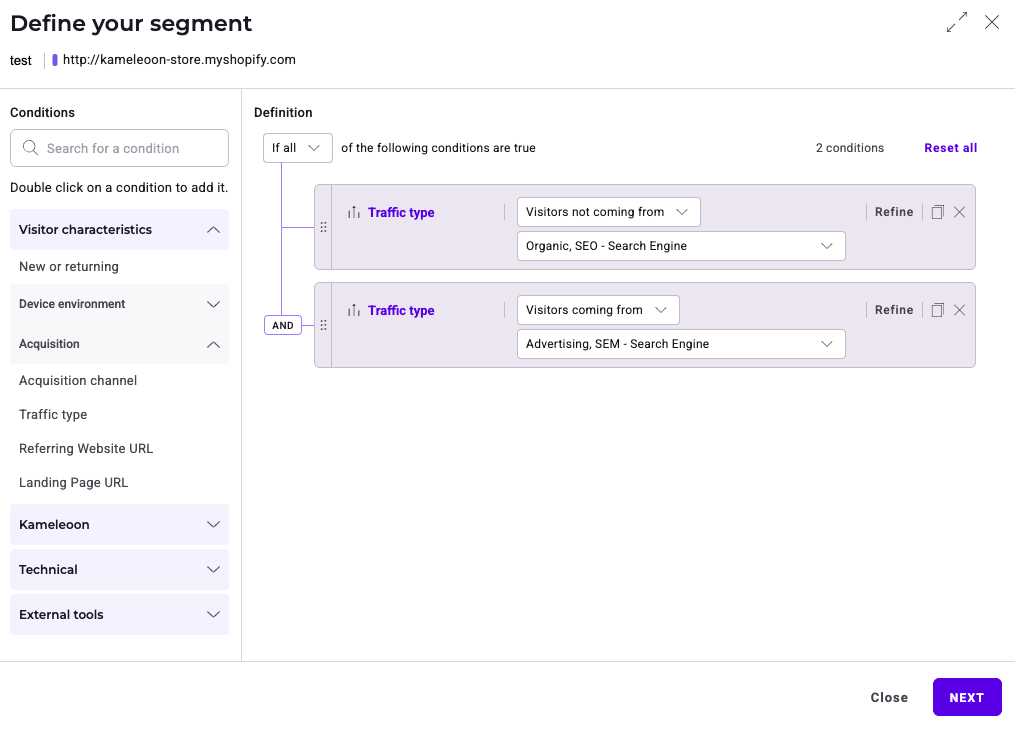
- Including Visitors from Specific Acquisition Channels:
- Condition 1: Acquisition Channel is SEO (Is not)
- Condition 2: Acquisition Channel is SEA (Is)
- Logical Link: AND
- Outcome: Only visitors arriving via SEA campaigns and not from SEO will be included in the experiment.
- Excluding Checkout Process Pages:
- Condition 1: URL contains /cart (Is not)
- Condition 2: URL contains /login (Is not)
- Condition 3: URL contains /payment (Is not)
- Logical Link: OR
- Outcome: Kameleoon excludes pages related to the checkout process.
If you are not sure if you configured everything correctly, use the simulation panel.
Review and save
After you click Next after defining your segment, a summary panel opens on the right. Here, you can see its settings and definition. You can expand either section to see more information.
- Settings: Displays the segment name, project, campaign type, description, tags, and if the segment is used in an audience. Click the pencil icon to edit any of these settings, then click Save changes.
- Definition: Displays your segment's definition. You can view a visual summary under the Block Summary tab or a text-based summary under the Written Summary tab.
Click Create segment to finish.
Targeting conditions
Kameleoon offers targeting conditions that help you include or exclude certain types of visitors.
The targeting conditions offered in the Segment Builder depend on the chosen campaign type.
Visitor characteristics
- Device type: includes or excludes visitors based on their device (tablet, smartphone, computer). You can also find this feature in the personalization creation flow.
- Browser: includes or excludes visitors based on their web browser. You can specify the browser version or target versions that are newer or older to other versions.
- Geolocation: includes or excludes visitors according to geolocation data (country, state, city).
- Kameleoon segment: This condition lets you include or exclude visitors based on their segment. You can import an existing segment into the Segment Builder. Its targeting conditions will then be associated with the new segment you're creating. For example, suppose you import the Kameleoon segment Returning visitors on mobile that you created and often use as a base. You adapt it to a specific campaign by adding the Goal converted condition, and you create this new segment.
- Note: The conditions that make up the imported segment cannot be modified: the segment is considered as a whole. When you use the same segment as a base in several segments associated with active campaigns, any change will have an impact on all relevant campaigns. Therefore, be careful when modifying your core segment. You can only nest segments one level deep. It's not possible to add a segment that already contains a Kameleoon segment inside another one. You can use the Kameleoon Segment condition several times to combine multiple segments.
- Visitor IP Address: includes or excludes visitors based on their IP address.
- New or returning: includes only new visitors (first visit) or those returning to your website.
- Screen resolution: includes or excludes visitors based on the size of their screen (in pixels).
- Operating system: includes or excludes visitors based on their operating system (for example, Windows MacOS).
- Browser language: includes or excludes visitors based on the language set in their browser.
- Ad blocker: includes or excludes visitors using an ad blocker.
Campaign exposure
- Web experiment: includes or excludes visitors who have been exposed to a specific experiment and have seen a specific variation or any of the variations (including the original). The condition considers the current visit or the previous ones. The selected experiment can be Online, Paused or Stopped.
- Personalization: includes or excludes visitors who have been exposed to a specific personalization. The condition considers the current visit or the previous ones. The selected personalization can be Online, Paused or Stopped.
- Feature Flag: includes or excludes visitors who have been exposed to a specific feature flag.
- Exclusive Campaign: excludes visitors already taking part in an experiment, a personalization, or both. This means that:
- If a visitor has already been exposed to another campaign (in the current or a previous visit), this visitor won't be eligible for your current experiment.
- A visitor can be targeted by other experiments that do not have the Exclusive campaign condition, even if they are currently part of an exclusive campaign. In other words, this condition doesn't prevent participation in other experiments. It allows visitors to participate in experiments that don't have the same exclusivity requirement.
If one of your campaigns or variations is used as a targeting condition in a segment, it cannot be deleted.
Conversions
- Converted goal: includes or excludes visitors based on whether they converted on a certain goal during the current visit or during previous visits.
- Likelihood to convert: Kameleoon's machine-learning algorithms predict each visitor's purchase or engagement intention in real-time. You can use this condition to automatically trigger personalization campaigns. For more information, refer to the AI Predictive Targeting documentation.
Technical
-
Custom JS: You can define a custom JavaScript function that returns true or false to determine whether Kameleoon includes a visitor in an experiment. There are three available options:
- Run the condition in loop until it returns True, False or Timeout: The function executes as soon as possible and continues running until a decision is made. It runs every 75 milliseconds before DOM Ready, then every 250 milliseconds after DOM Ready. To stop the execution, return
trueto target the visitor or returnfalseto exclude them. For example:
if (window.dataLayer && window.dataLayer.some(layer => layer.pageType === "homepage")) return true; if (window.dataLayer && window.dataLayer.some(layer => layer.pageType !== "homepage")) return false;-
Wait until the page has loaded: The condition is only checked after DOM Ready, executing every 250 milliseconds until a decision is made. To stop the execution, return
trueto target the visitor or returnfalseto exclude them. Ifundefinedis returned, the function keeps running in a loop at the defined intervals. -
Run the condition asynchronously: Use this option when waiting for a response from an API or external service before determining whether a visitor should be included. Instead of returning a value, call
setTargeting(true)orsetTargeting(false). For example:
- Run the condition in loop until it returns True, False or Timeout: The function executes as soon as possible and continues running until a decision is made. It runs every 75 milliseconds before DOM Ready, then every 250 milliseconds after DOM Ready. To stop the execution, return
const userId = localStorage.getItem("user\_id");
 if (!userId) {
    setTargeting(false);
    return;
 }
 const apiUrl = `https://api.example.com/check-segment?userId=${userId}`;
 fetch(apiUrl, { method: "GET", headers: { "Content-Type": "application/json" } })
   .then(response => response.json())
   .then(data => {
     setTargeting(data?.isInSegment === true);
   })
   .catch(() => {
     setTargeting(false);
   });
- Custom data: This set of conditions lets you include or exclude visits based on custom data. For more information, see this article on advanced targeting tools. If you set values when creating your custom data, you can select them in the Segment Builder. Choose is among the values in the dropdown and check the values.
- Browser cookie: includes or excludes visitors based on the presence of a cookie in their browser and, if possible, its value.
- SDK Type: includes or excludes visitors based on the SDK type used.
- App version: includes or excludes visitors based on the version of the application.
Acquisition
- Landing page URL: includes or excludes visitors based on the URL of their landing page.
- Traffic type: includes or excludes visitor based on the website they came from, such as a search engine, an email link, or another referring website.
- The traffic type condition depends on either the landing page URL or the referrer URL:
- Emailing if the landing page URL contains the pattern
utm_medium=email or utm_medium=newsletter. - Search engine (advertising, SEM) if the landing page URL is from a Google domain and has
aclkas path, or has the parameteraclkin the query. - Search engine (organic, SEO) if the referrer URL contains
google,bing,yahoo,yandex, orbaidu. - Direct if the referrer URL is empty (
null). - Referrer sites (affiliation) if you have a landing page URL and a referrer URL that does not contain
google,bing,yahoo,yandex, orbaidu.
- Emailing if the landing page URL contains the pattern
- The traffic type condition depends on either the landing page URL or the referrer URL:
- Referring website URL: includes or excludes visitors based on the referring URL.
- Acquisition channel: includes or excludes visitors based on the marketing or referral source that brought them to your website.