Create a widget with PBX
PBX Widgets is an AI-powered UI generator that helps you create widgets for your experiments and personalizations created in the new personalization builder. Instead of manually writing HTML, CSS, and JavaScript, you describe the widget in natural language, and PBX generates the component automatically.
This approach enables marketers, product managers, and CRO specialists to build UI components quickly without technical expertise.
Typical widgets created with PBX include:
- Newsletter subscription popups
- Promotional banners
- Exit-intent offers
- Lead capture forms
- Product recommendation panels
- Survey or feedback modals
PBX widgets are not compatible with legacy personalization. You can ask your CSM to get access to the new personalization if needed.
Create a widget
Follow these steps to generate and refine a widget using PBX.
1. Open PBX
To start generating a widget in the Kameleoon interface:
- Go to Studio > Widgets.
- Click New widget.
- Select Using a prompt.
- Enter the required information in the pop-in menu.
- Click Create.
2. Write a prompt
Describe the widget you want to build in the prompt field. PBX uses this description to generate the widget UI automatically.
Example prompt:
Create a centered modal popup widget.

- Layout: Two columns with an image placeholder on the left and a subscription form on the right.
- Content:
  - Title: Join an Exclusive Community
  - Description: Subscribe for exclusive discounts and get 15% off your next purchase.
  - Form: Email input field with placeholder "Enter your email address"
  - CTA button: Subscribe now
  - Secondary link: No thanks
- Style:
  - Modern ecommerce design
  - Rounded UI elements
  - Light beige background
  - Dark CTA button
- Behavior:
  - Display after 5 seconds
  - Close button in top right corner
  - Close popup when clicking "No thanks"
- Tracking: Track a goal called "Newsletter Signup" when the CTA button is clicked.
- Image: Use the following image in the image placeholder on the left: [https://www.whereyourimagelives.com](https://www.whereyourimagelives.com)
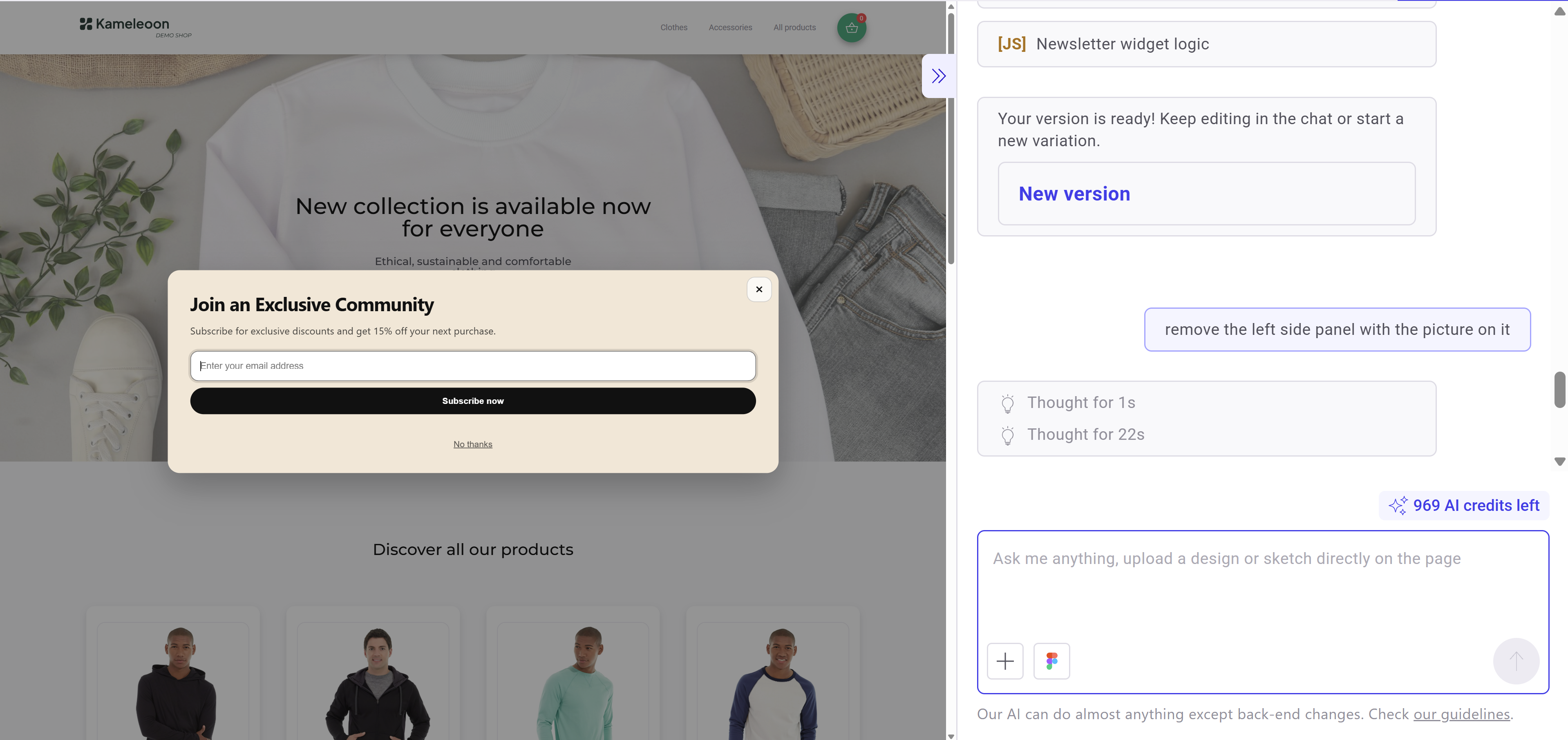
3. Preview and iterate
The fastest way to reach your desired result is to use a prompt-iteration workflow. Review the generated widget and refine it by writing follow-up prompts, such as:
-
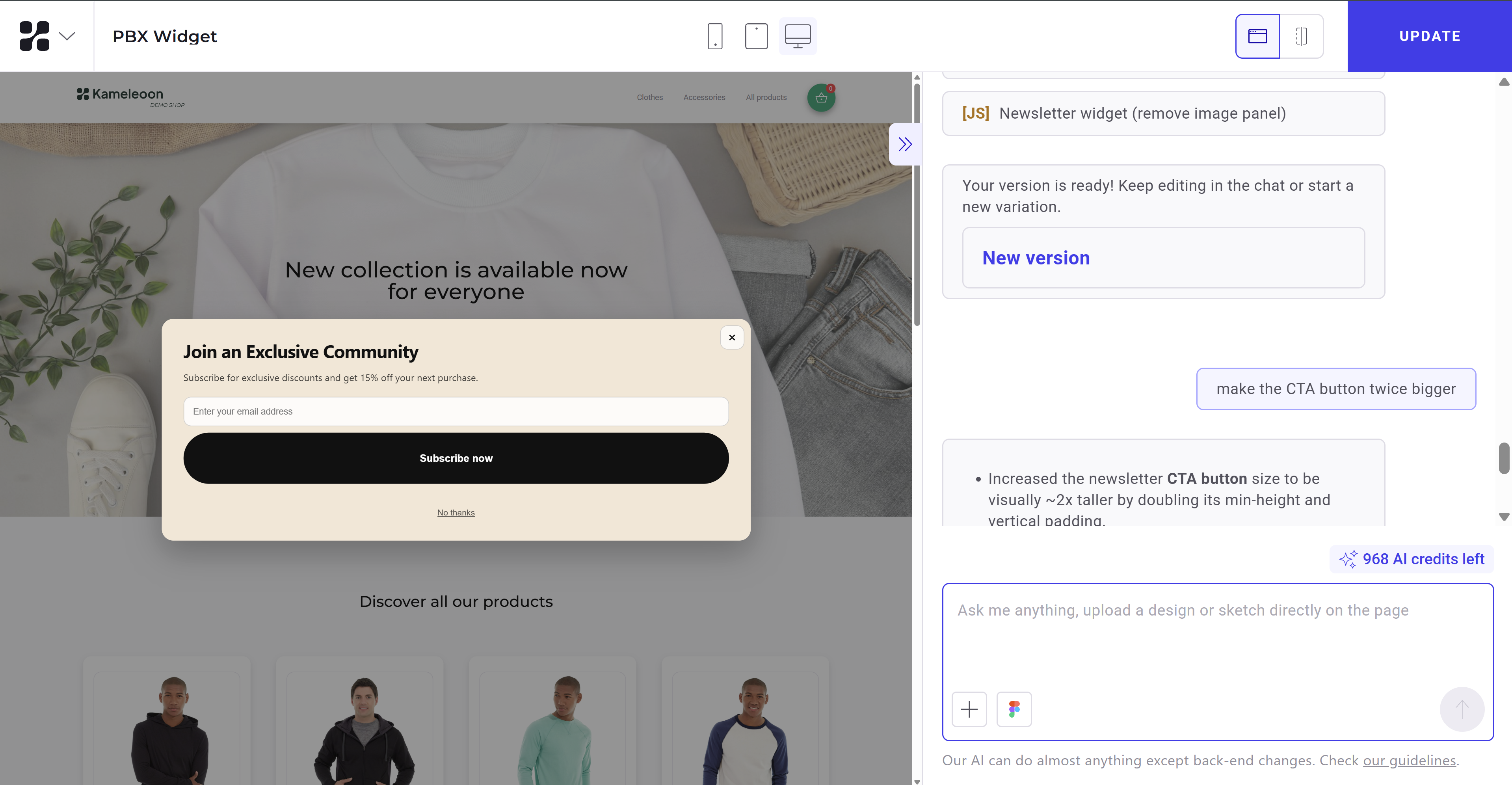
"Make the CTA button larger"
-
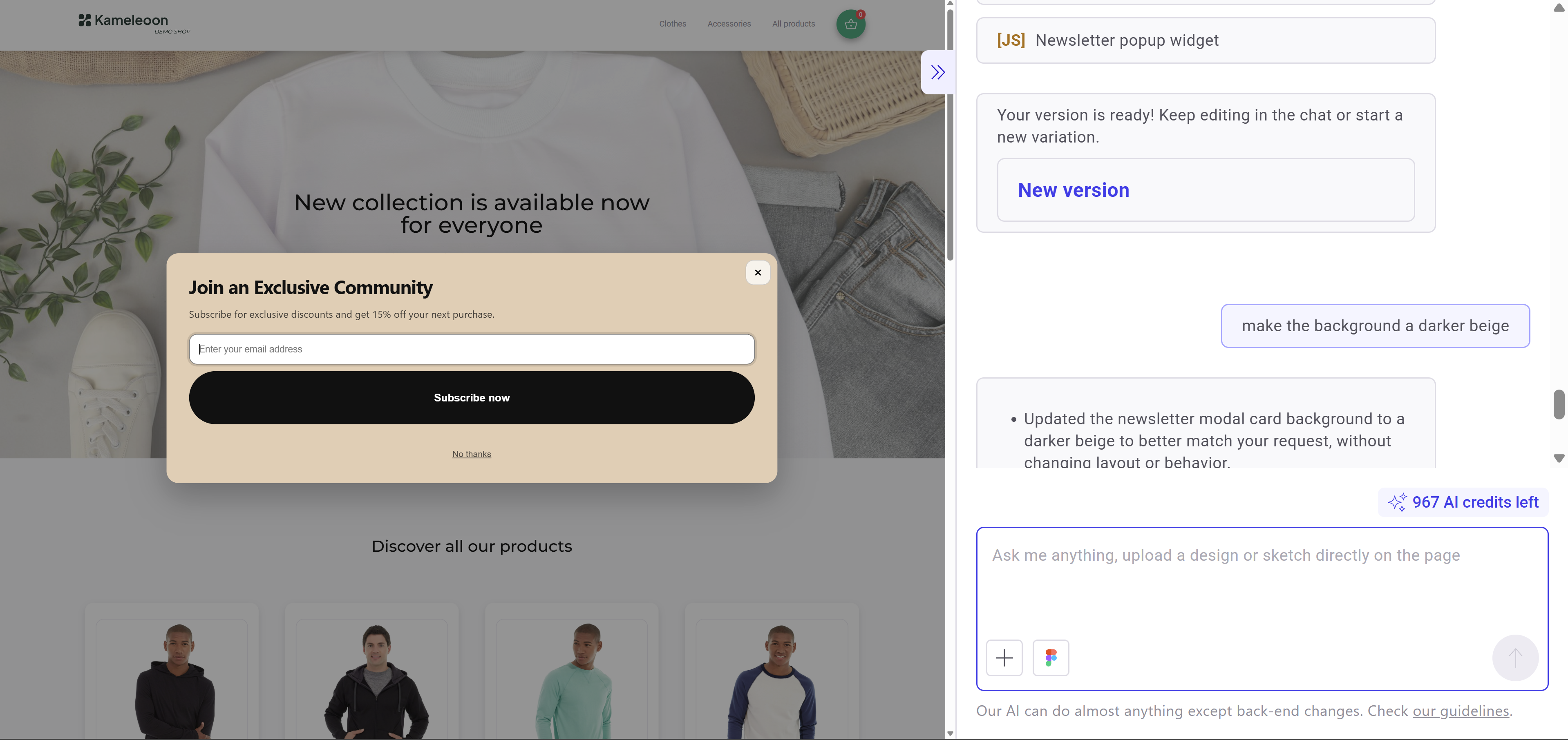
"Change the background color to a darker beige"
-
"Make the popup appear after 3 seconds"
4. Add goals
Track user interactions—such as email submissions, button clicks, form completions, or widget displays—by adding goals to your prompt.
You must configure the goals in Settings before you can track them in a PBX widget.
Example prompts for goals:
- Newsletter signup:
Track a goal called "Newsletter Signup" when the user clicks the Subscribe button. - CTA click:
Track a goal when the CTA button is clicked. Goal name: Promo CTA Click - Widget engagement:
Track a goal when the popup is displayed. Goal name: Widget Viewed
Send widget responses to Google Sheets (Optional)
You can configure a PBX widget to send survey and form responses directly to Google Sheets. You must first configure your Google Sheet as described in this guide.
When writing the prompt to connect your widget to Google Sheets, follow these guidelines:
- Define a clear submission trigger: Specify which element triggers the request. The trigger is typically the main CTA button (for example,
SubmitButton). - Use an external HTTP POST request: Set the method to POST and include your Google Apps Script Web App URL.
- Provide the Web App URL explicitly: Always include the full URL (for example,
https://script.google.com/macros/s/XXXXXXXX/exec). PBX cannot infer or generate this automatically. - List all elements to send: Explicitly name every field (for example,
email,rating,comment).
Do not rely on implicit behavior. PBX requires exact field names.
- Match parameter names exactly: Ensure the names match exactly across your widget element names, the request payload, and the Google Sheets column headers.
Example prompt for Google Sheets integration:
Add a system to send widget form data to a Google Sheet using an HTTP request.

- Submission trigger: Use the button named "SubmitButton"
- Request configuration:
  - Request name: SendToGoogleSheets
  - Method: POST
  - Action URL: https://script.google.com/macros/s/AKfycbxxxxxxx/exec
- Data to send: Send the values of the following elements as parameters:
  - email
  - rating
  - comment
- Payload rules:
  - Each parameter key must exactly match the element name
  - Keys must also match the column headers in the Google Sheet
- Behavior:
  - Trigger the request when the SubmitButton is clicked
  - After successful submission, display a confirmation message: "Thank you for your response"
  - Optionally handle errors if the request fails
Write effective prompts
Well-written prompts significantly improve the quality of the generated widget.
Use a clear structure
The best prompts follow a logical structure:
- Widget type
- Layout
- Content
- Style
- Behavior
Example:
Create a modal popup widget.

- Layout: Two columns with an image on the left and a form on the right.
- Content:
  - Title: Join our community
  - Description: Get 15% off your first order
  - Email field
  - CTA button: Subscribe now
- Style:
  - Modern ecommerce design
  - Rounded buttons
  - Dark beige background
- Behavior:
  - Display after 5 seconds
  - Close button in top right corner
- Image: Use the following image in the image placeholder on the left: https://www.whereyourimagelives.com
Be specific
Specific prompts produce more accurate layouts and styles.
Bad prompt:
Create a popup for a newsletter
Better prompt:
Create a centered modal popup for newsletter subscription with a modern ecommerce design. Include an email input field and a large CTA button offering 15% off.
Define UI elements explicitly
Always specify the elements you need, such as titles, buttons, inputs, secondary links, icons, or images.
Example:
Add:
- Email input field
- Large CTA button
- Small legal disclaimer text
- "No thanks" link below the button
Describe behavior
PBX can generate widget logic if you specify it.
Examples:
Show popup after 5 secondsClose popup when clicking outsideClose popup when clicking "No thanks"
Iterate instead of rewriting
Rather than rewriting the entire prompt, refine your widget step-by-step. Iterative prompting improves results efficiently.
Examples:
Make the CTA button darkerIncrease padding inside the popupAdd rounded corners to the input field