Heap Cohorts
This feature is in open beta and active development. Contact the Kameleoon support team for help with this integration.
Heap is a product analytics tool that helps businesses track user behavior, analyze data, and improve their digital products to boost engagement and growth.

You can use the Kameleoon Heap Cohorts integration to sync segments from Heap with Kameleoon.
Key benefits
- Seamless cohort sync: Import user segments from Heap into Kameleoon effortlessly.
- Personalized targeting: Deliver tailored experiences based on user behavior.
- Enhanced experimentation: Run precise A/B tests on specific audience groups.
- Real-time updates: Keep user segments up-to-date automatically.
Use cases
Optimize experiments with behavioral targeting
You can sync Heap segments with Kameleoon to test variations on users based on their real-time behavior.
For example, you might run an A/B test on users who have viewed a product page multiple times but haven't added anything to their cart. You could then test different incentives (such as limited-time offer versus social proof messaging) to determine which strategy drives the most conversions.
Analyze results with behavioral segmentation
You can break down Kameleoon campaigns using Heap cohorts for deeper insights.
For example, if a test or personalization campaign shows a drop in conversions, you can analyze key Heap segments (such as high-value customers or churn-prone users) to identify patterns. Heap segments help you understand which experiences resonate best with different user groups, so you can refine your strategy.
Personalize experiences using Heap's rich user insights
You can leverage Heap's deep user data—such as behavior, lifecycle stage, or purchase history—to create highly relevant experiences in Kameleoon.
For example, you might identify frequent buyers, users who recently downgraded their subscription, or those who engage with specific content. You can then tailor messaging, promotions, or feature recommendations in Kameleoon to maximize engagement and conversions.
Get started
Store Kameleoon Visitor Code as a Heap Identifier
Add this code to your Heap SDK immediately after the heap.load() function:
// Ensure Heap and Kameleoon are loaded before identifying the user
const visitorCode = Kameleoon.API.Visitor.code;
heap.identify(visitorCode);
Prerequisites
To configure this integration, you need the following information:
- Heap account: An active account where you are signed in.
Activate the integration in Kameleoon
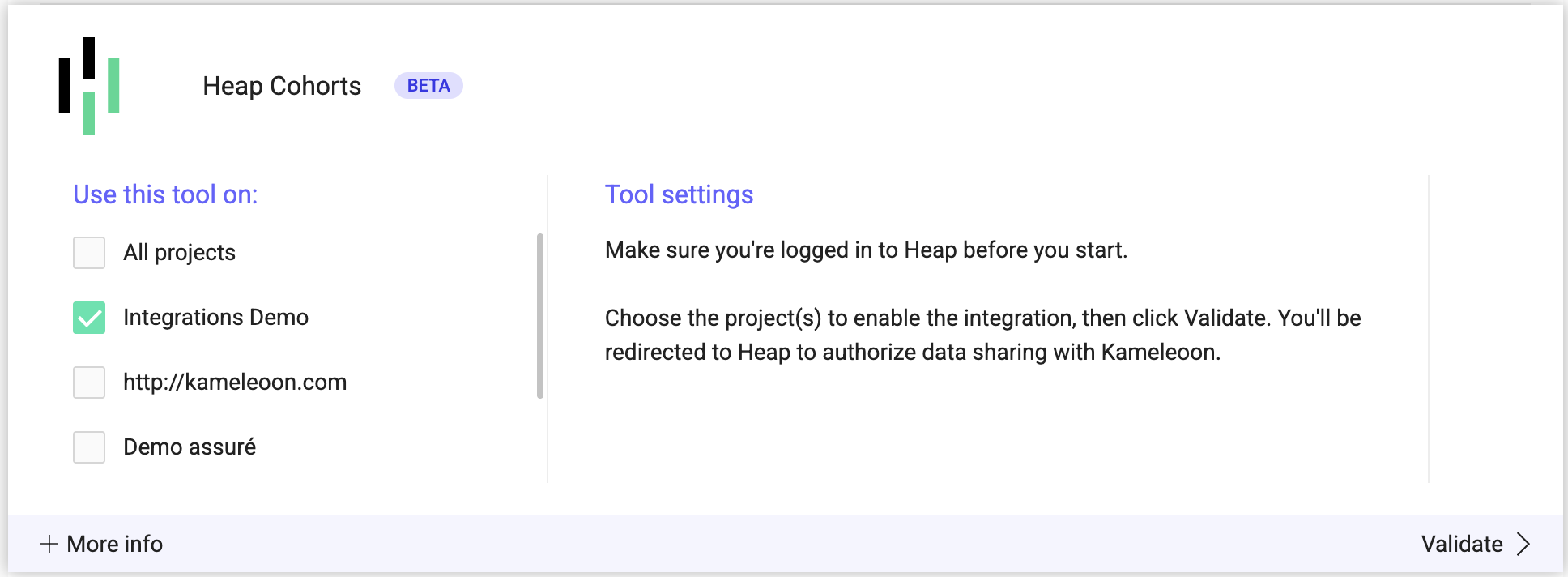
Enable the Heap Cohorts integration to authorize data sharing.
- In Kameleoon, go to Admin > Integrations.
- Click Heap Cohorts and select Install.
- Select your project(s) and click Validate. Kameleoon redirects you to Heap.
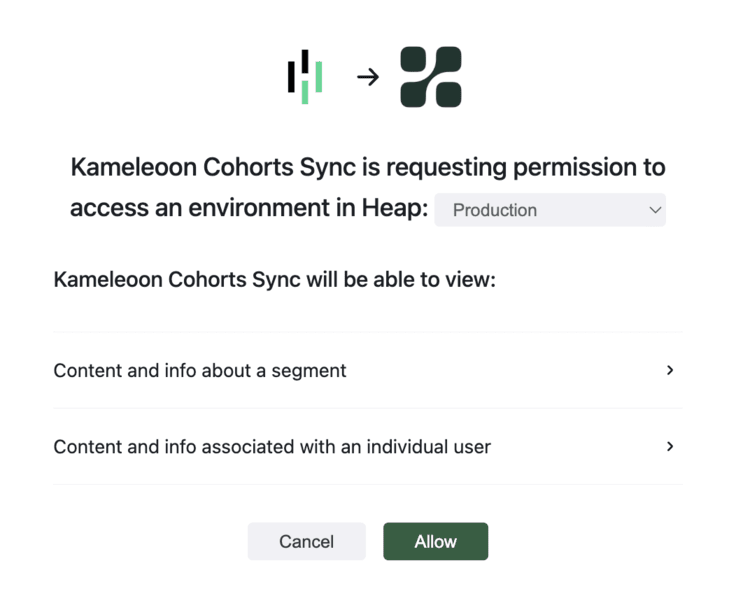
- Grant Heap permission to share data with Kameleoon.
Sync Heap segments to Kameleoon
- In Heap, go to Data > Segments.
- Select the segment you want to sync.
- At the bottom of the page, enable Kameleoon Cohorts Sync for that segment.

Leverage Heap Cohorts in your Kameleoon campaigns
You can create custom data to target Heap segments in your experiments.
Retrieve Heap segments for client-side experiments
-
In Kameleoon, go to Configure > Custom data.
-
Click New custom data.
-
Set the Name to
Heap Cohorts. -
Select your project.
-
Set the Retrieval method to Custom JavaScript code.
-
Insert the following snippet into the code field:
Kameleoon.API.Data.retrieveDataFromRemoteSource("HEAP_COHORTS_" + Kameleoon.API.Visitor.code, function(data) {
  if (data?.cohorts) {
    data.cohorts.map(function(segment) {
      Kameleoon.API.Data.setCustomData("Heap Cohorts", segment);
    });
  }
});

return { "value": null }; -
Set Type to List.
-
Set Format to String.
-
Set Scope to Page. This scope ensures the data re-evaluates on every page load to check if the user belongs to a specific Heap cohort.
Retrieve Heap segments for server-side experiments
- Click New custom data.
- Enter a Name for the custom data (for example,
Heap cohorts). - Select your project.
- Set the Retrieval method to Kameleoon SDK.
- Set Type to List.
- Set Format to String.
- Set Scope to Page.
To use Heap segments in server-side experiments or feature flags, refer to the specific documentation for your SDK. For example, the Go SDK documentation details how to use the getRemoteData() method to fetch data stored by Heap on Kameleoon servers.
Fetch Heap segment names in Kameleoon
To display human-readable segment names instead of IDs:
-
In the custom data creation step, select the option Save the values for the targeting condition associated with the custom data point.
-
Insert the following snippet into the field and replace
ADD_YOUR_SITECODEwith your actual project sitecode:var xhr = new XMLHttpRequest();
var siteCode = 'ADD_YOUR_SITECODE';
xhr.open("GET", '[https://data.kameleoon.io/map/map?siteCode=](https://data.kameleoon.io/map/map?siteCode=)' + siteCode + '&key=HEAP_COMMON', false);
xhr.send(null);
if (xhr.status === 200) {
const data = JSON.parse(xhr.responseText);
var heapSegments = [];
if (
data &&
Object.prototype.hasOwnProperty.call(data, "cohorts") &&
data.cohorts &&
typeof data.cohorts === "object"
) {
Object.entries(data.cohorts).forEach(function ([id, name]) {
heapSegments.push({
value: id,
label: name
});
});
return heapSegments;
}
return [];
} else {
console.error("Error calling for existing custom data values");
return [];
}
Use Heap segment IDs in a Kameleoon segment
Once you configure the custom data for Heap segment names:
- Open the Kameleoon Segment Builder.
- Select your custom data.
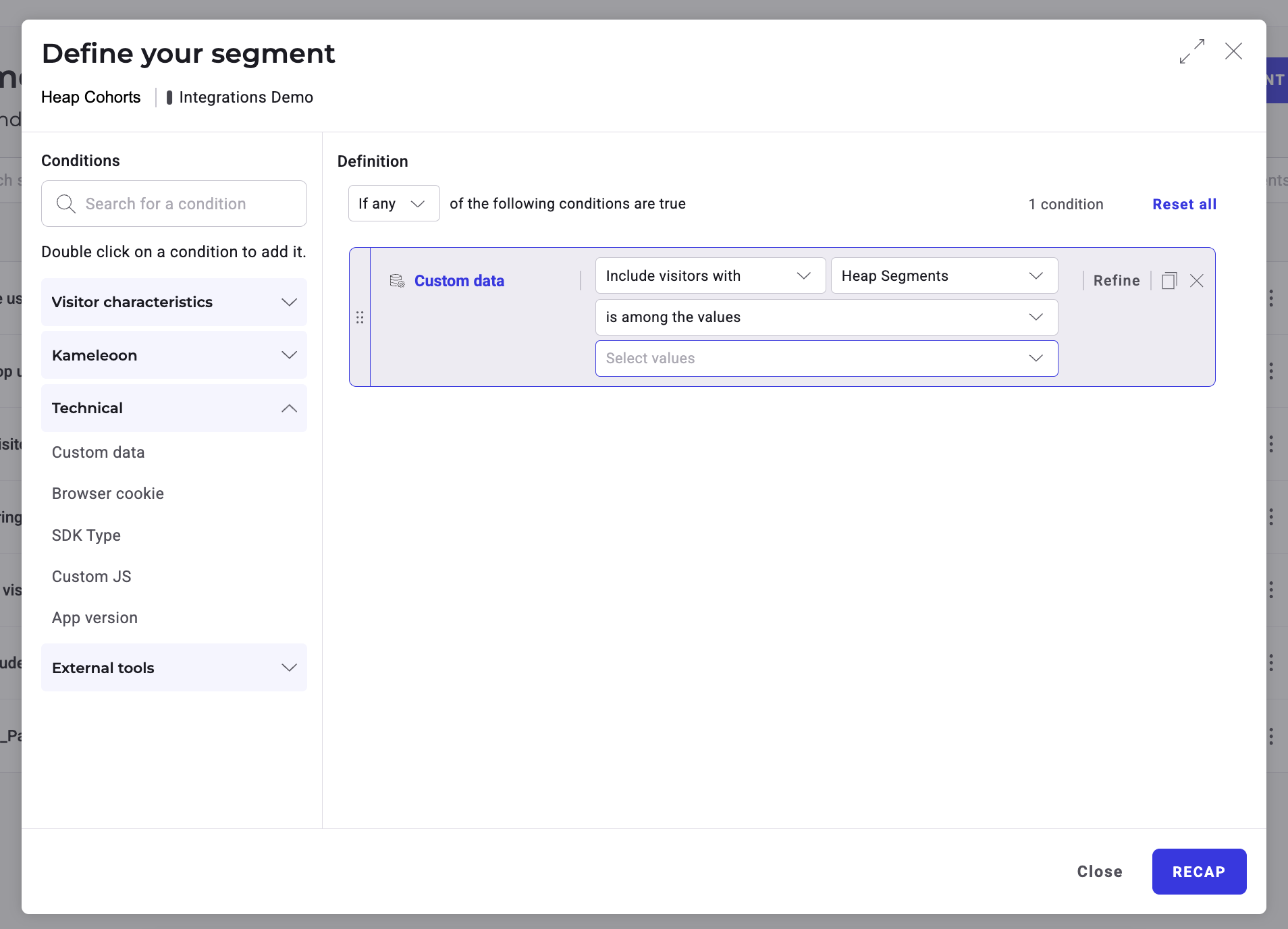
- Select the condition is among the values. Kameleoon displays a list of every cohort ID from Heap.
- Select one or more Heap segments to enable targeting for your personalizations and experiments.